Procore
Updated 26 October 2026
Connect Procore, map projects, pick files, sync data, and optionally push site diaries.
Connect your Procore company, map DAIV projects, choose what to bring in, and optionally send published site diaries back to Procore.
Open Manage Organisation → Integrations.
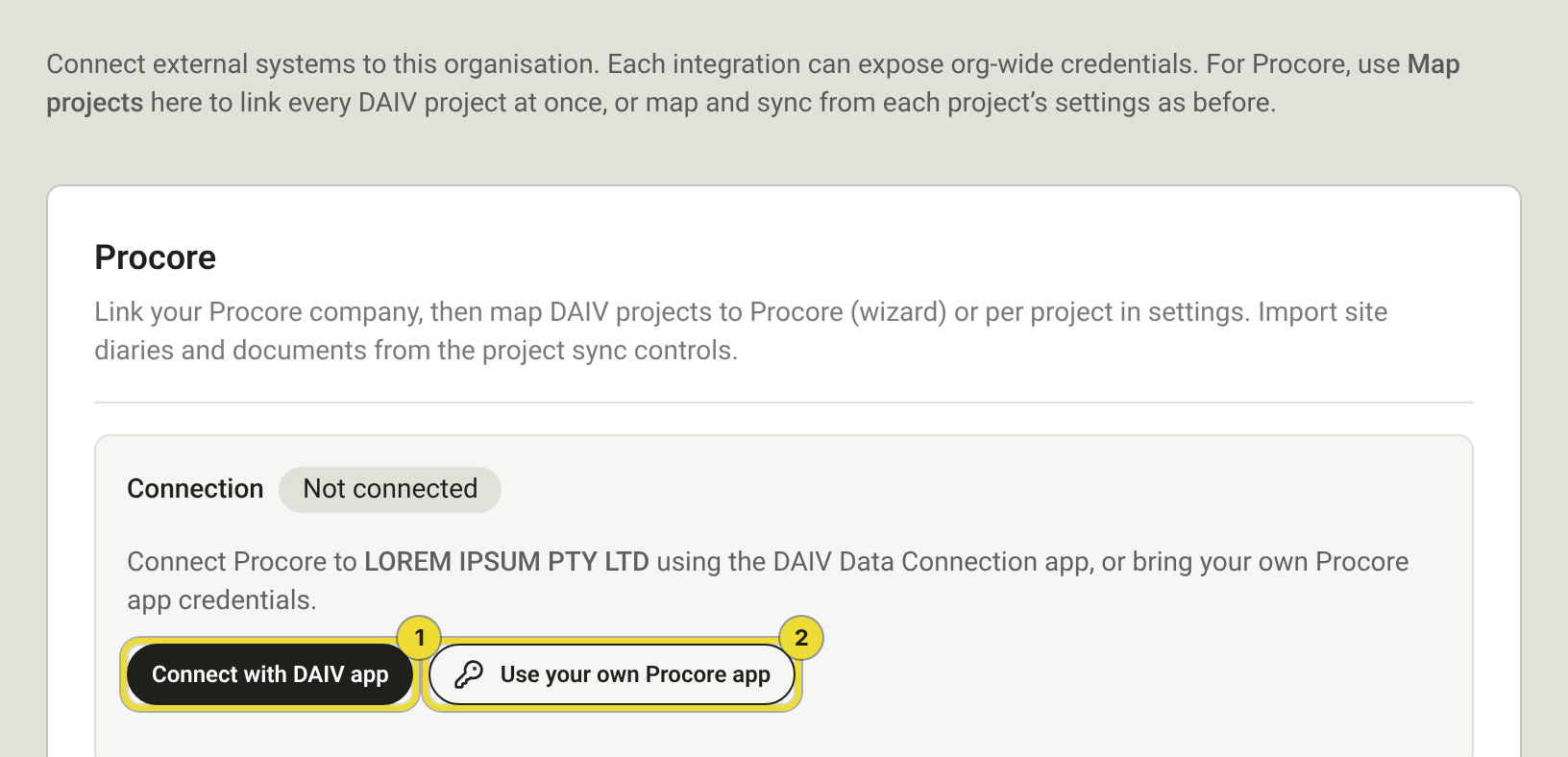
Connect with the DAIV app
- Select Connect with DAIV app (1).
- In Procore, open App Management, install the DAIV Data Connection app, and add the projects it may access.
- Back in DAIV, select Sign in with Procore, pick the Procore company, and finish the connection.
Use Choose a different method if you need to switch to your own app instead.
Use your own Procore app
Use this when your organisation runs its own Procore Data Connection app (bring your own credentials).
- Select Use your own Procore app (2).
- In the Procore developer portal, create a production Data Connection app (not development or sandbox).
- Copy the Redirect URI from DAIV and register it on the app’s OAuth credentials.
- Install the app on your Procore company and add permitted projects.
- Paste the Client ID and Client Secret into DAIV, then select Save credentials.
- Select Sign in with Procore, choose the company, and connect.
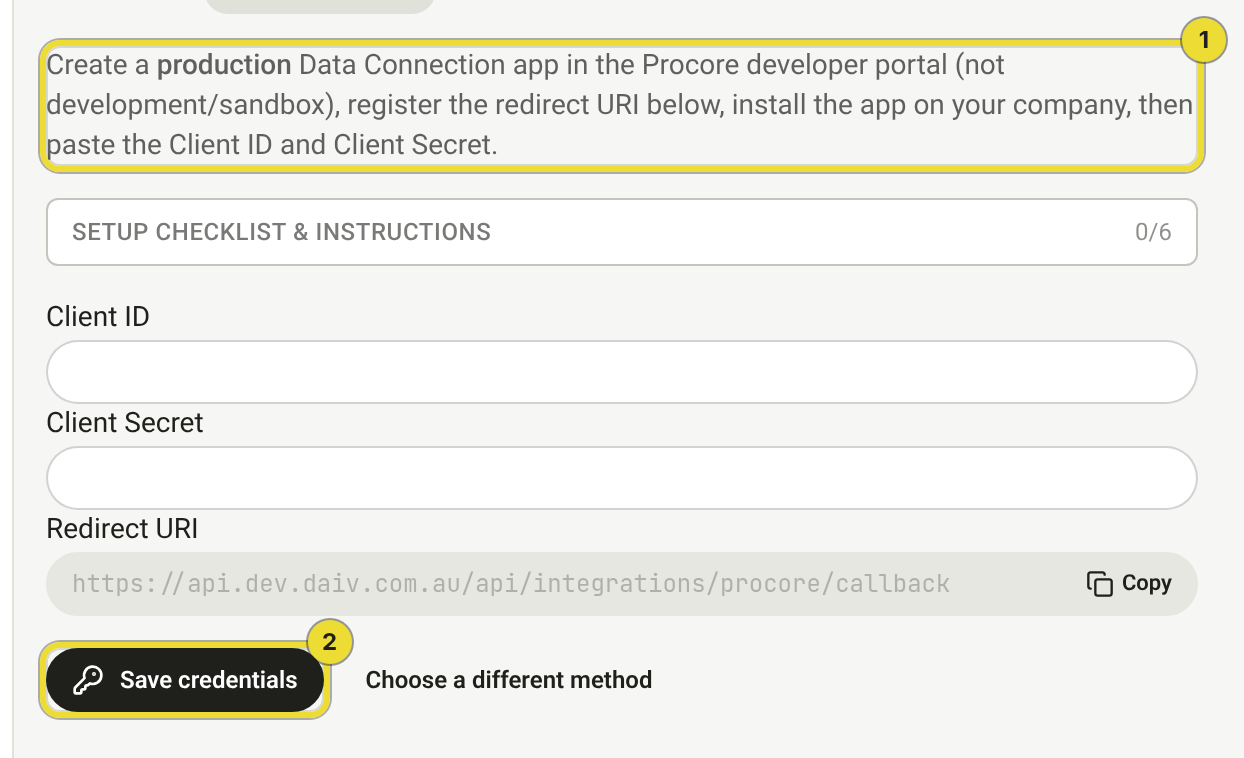
Open Setup checklist & instructions on the same panel for the in-app permissions list and sync coverage table.
Set permissions in Procore
In the app’s Data Connector → Service Account Authentication, set tools you do not use to None. DAIV needs:
| Level | Tool | Role |
|---|---|---|
| Company | Webhooks API | Standard |
| Project | Change Events, Directory, Documents, Drawings, RFIs, Specifications, Submittals, Transmittals | Read-only |
| Project | Daily Log, Photos | Standard |
| Project | Webhooks API | Standard |
Daily Log and Photos must be Standard so DAIV can push site diaries (and their photos) into Procore as notes. Optionally enable the granular permission Standard Users Can Edit and Delete Own Entries so amended diaries update the existing note instead of posting an amendment.
Do not enable Collaborator Entry Only. If it is on, DAIV’s notes wait for admin approval in Procore and will not appear as normal daily-log entries.
Map projects
After the organisation is connected:
- On Integrations, select Map projects to link many DAIV projects at once, or
- Open a project → Settings → Procore, enter the Procore project ID (the number in the Procore project URL), and select Save.
Clear the ID and save to unlink a project.
Pick files from Procore
Procore shows in the file menu after an Owner or Admin has connected Procore.
- Where DAIV asks for a file, select the upload area.
- Select Procore.
- The first time, select Sign in to Procore.
- Select up to five files.
- In a project, select Add. The files join that project's documents.
- Outside a project, choose the Procore project, then select Select.
Select Change account if you need a different Procore login.
Sync from Procore
On the project Procore settings card:
- Under What DAIV brings in from Procore, turn each item on or off (documents, daily logs, photos, directory, and so on).
- Select Update now for a manual pull, or wait for the automatic updates (at least twice a day). Webhooks also refresh when Procore changes.
- Use Bring in last 90 days when you need a longer daily-log backfill.
Send site diaries to Procore
Push is off by default and set per project.
- Link the project (see Map projects).
- Turn on Send site diaries to Procore.
- Publish site diaries in DAIV as usual. DAIV adds each published diary and its photos to that day’s Procore daily log. Days already completed in Procore are left alone.
Needs Daily Log and Photos at Standard, and Collaborator Entry Only left off (see Set permissions in Procore).
Disconnect
On Integrations, select Disconnect to clear the organisation connection and linked Procore project IDs. Only Owners and Admins can disconnect.