Diary, inbox and WhatsApp
Updated 26 October 2026
Keep site and office diary entries, browse them by day, review diary agent suggestions, receive project email in the inbox, and connect field staff over WhatsApp.
Diary and Inbox record site and office activity and inbound email on each job. Optional WhatsApp gives field staff a project channel for messages and site photos.
Project Diary
Open a project → Diary.
| Tab | Purpose |
|---|---|
| Site Diary | On-site events, progress, delays and site-level observations |
| Office Diary | Office correspondence, meetings and commercial notes |
- Select Daily to see one day, or List to search every entry.
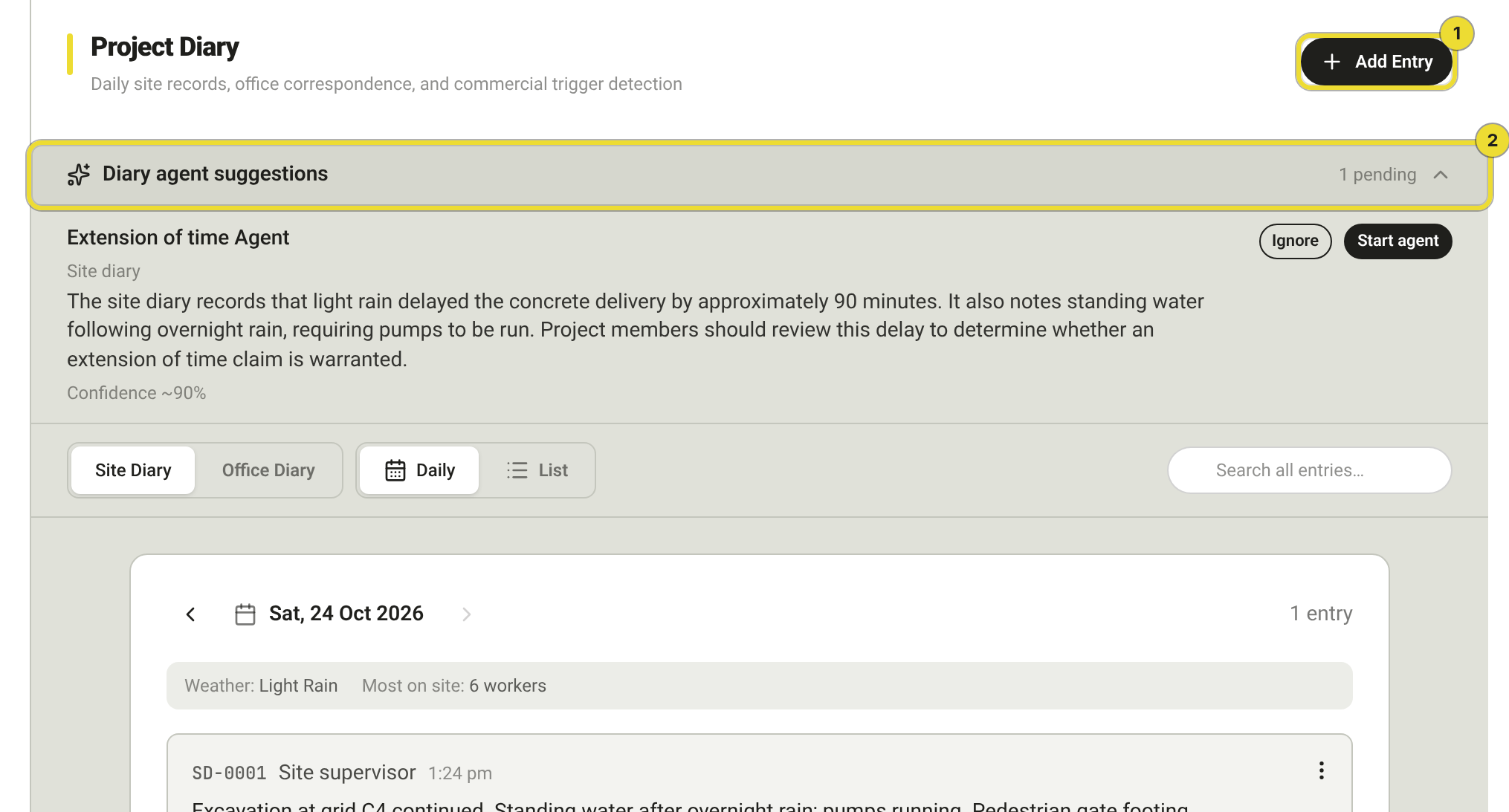
- Select Add Entry (1) to create a draft, then publish. Published entries stay editable for 24 hours, then lock.
- Review Diary agent suggestions (2) when DAIV flags activity that may warrant a commercial workflow.
On a Site Diary entry you can set Weather Condition (suggested from Google Weather when you change the date), Generate or Upload a Weather report PDF, and attach files or photos. Office entries also accept file attachments. A published site diary shows its number on the row, for example SD-0007.
If the project syncs with Procore, some site rows are read-only and photos may open in Procore.
Diary evidence on agents
Both the Extension of time and Variation agents use the same Validate and Notify evidence picker. Use Add supporting evidence to attach a Site diary or Office diary narrative, its files or photos, an uploaded file, or a project document. Procore-only photos are not attached from DAIV.
On an EOT run, an existing diary Weather report is added to supporting evidence for you — remove it if it is not relevant. On a variation run, add the weather report yourself from the site diary when it supports the claim.
Attached evidence is appended to the generated notice PDF as annexures. See Claim an extension of time and Run a variation.
Regular diary entries improve agent suggestions from recent site and office activity.
Diary agent suggestions
When DAIV detects activity that may warrant a commercial workflow, a banner appears on the diary:
Diary agent suggestions — review the suggested Agent (for example Variation Agent or Extension of time Agent), summary text, and source (Site diary or Office diary).
| Action | Result |
|---|---|
| Start agent | Opens the suggestion panel and can start a new agent run using context from the diary entry |
| Ignore | Dismisses the suggestion for that candidate |
Extension of time diaries with the same cause on the same day share one card. The title names the cause and how many diaries. A variation stays on its own card.
- On a card with more than one diary, select the diaries to move, then select Split selected. Leave at least one diary on the card.
- When Merge into this is shown, choose another suggestion of the same type, then select Merge.
- Select Remove beside a diary to take it off the card. Remove on the last diary dismisses the suggestion.
On the agent, select Remove beside a diary in supporting evidence. After the run reaches consolidate, Remove is no longer there.
After you Start agent, the diary entry shows a green Started pill (for example Extension of time Agent Started or Variation Agent Started). Click the pill to open the run.
The same suggestions surface on Dashboard → My Work as Agent suggestion tasks (filter by Post-Execution phase). Open the panel to review, then Start agent or Open in Diary for full context.
Project Diary Agent Approval chooses who is notified when a new suggestion is published. Set it on the agent in Manage Organisation → Post-Execution Settings, or on the project agent card. Choose a person or a project function. My Work then shows those suggestions to the assignee. See Agents and reviewers.
See Run and review agents on a project to monitor runs.
Project Inbox
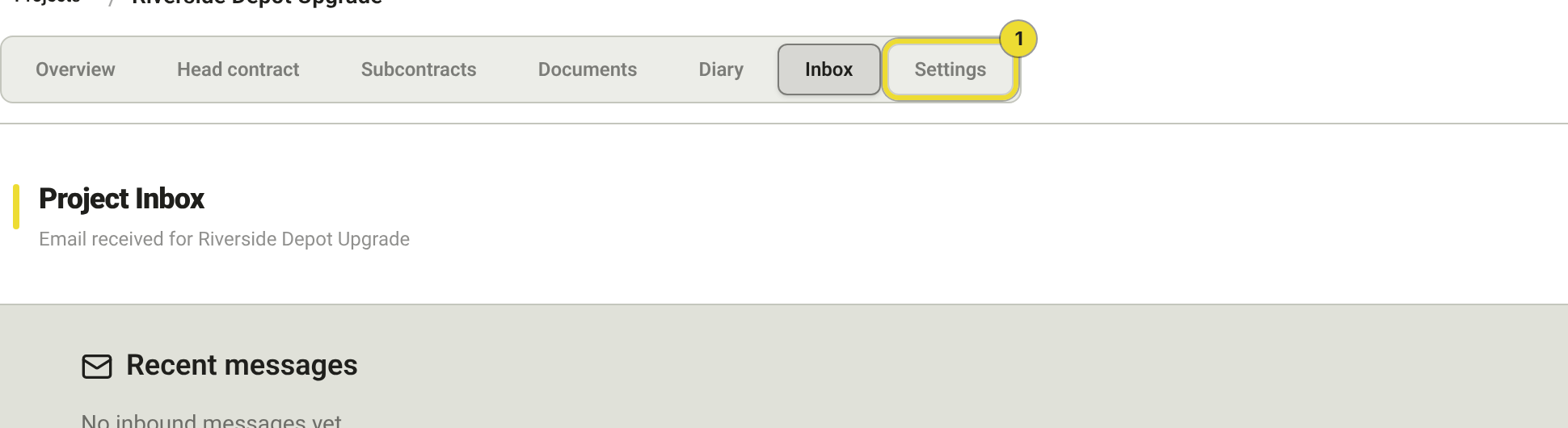
Open a project → Inbox.
The inbox receives email sent to the project's dedicated ingestion address (configured in Settings (1) → Email ingestion).
Quarantine
Unknown senders land in Quarantine until you decide:
| Action | Result |
|---|---|
| Allow domain | Adds the sender's email domain to the project allowlist and reprocesses quarantined mail from that domain |
| Reject | Discards the quarantined message |
Allow domain approves the whole sending organisation, not just one address — allowing jo@acmeplumbing.com.au also admits everyone else at acmeplumbing.com.au. Mail already sitting in quarantine from that domain is reprocessed automatically. DAIV shows Reprocessing allowed mail… and the messages appear in Recent messages within a few seconds.
Allow a domain only when you are happy to receive mail from anyone at that organisation. Use it for subcontractors and consultants on the job, not for generic mail providers.
Rejected messages are discarded and do not appear in Recent messages. Review quarantine regularly so legitimate subcontractor or consultant email is not missed.
Recent messages
Recent messages lists allowed inbound mail. Open a message to read the body and its attachments.
Select View on an attachment to open it without leaving DAIV. PDFs and images open in a preview window; other file types open in a new browser tab. Attachments can also be referenced as evidence on agent runs.
Every project member can open Settings to see the project's ingestion address and allowlist. Only organisation Owners and Admins can change the address, edit the allowlist, or allow and reject quarantined senders. Other members see the addresses but not the controls.
When WhatsApp is enabled for your environment, each project can have a dedicated channel so field staff reach DAIV with the correct project context.
Open the project → Settings → WhatsApp.
If the channel is not enabled for your environment, the page explains that WhatsApp is unavailable — contact your organisation admin or DAIV support if you expected it to be on.
Project QR code and code
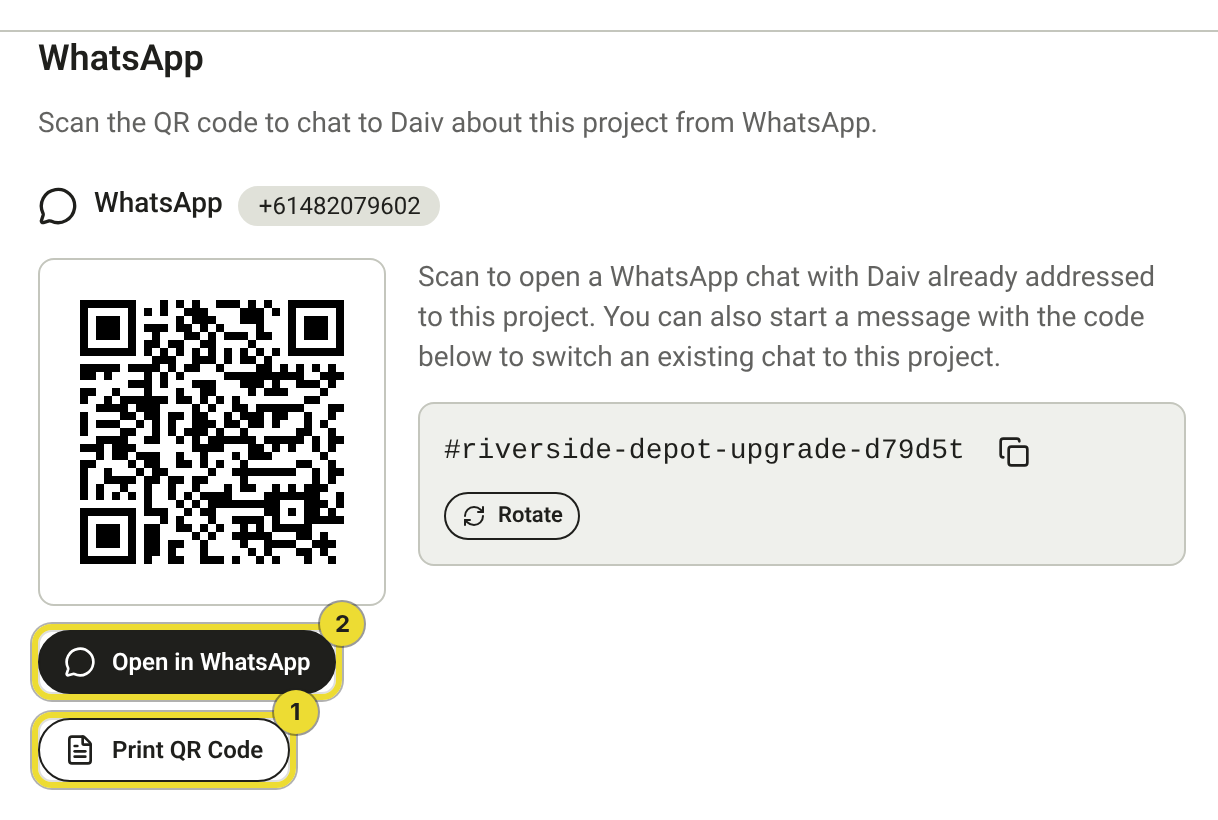
When WhatsApp is active for the project, you see:
| Item | Purpose |
|---|---|
| QR code | Scan to open a WhatsApp chat addressed to this project |
| Open in WhatsApp (2) | Opens the same chat on your phone or desktop |
| Project code | Short code (for example #riverside-depot-upgrade-…) — send this in an existing chat to switch the conversation to this project |
| Print QR Code (1) | Opens a printable PDF |
Switch project in an existing chat
You do not need a new QR code to move a chat onto another project you can access. In the WhatsApp thread, reply with one of:
switch— DAIV lists projects you can chooseswitch tofollowed by the project name- the project code (for example
#ABC123)
DAIV checks that you still have access before it binds the chat to that project.
Print or share the QR code on site so supervisors and subcontractors can easily interact with DAIV about the project.
Keep a printed poster near the site office or induction area. Anyone with the poster can reach the correct project channel without asking the project team for the code.
Send photos over WhatsApp
Field staff can send site photos straight into the project channel. DAIV analyses them the same way as photos attached in the web assistant, and you can lodge them to a Site Diary or Office Diary entry from the conversation.
| Detail | What to expect |
|---|---|
| Formats | JPEG, PNG, WebP and HEIC. Other media types get a reply explaining that only photos are supported |
| Several photos at once | Send them as an album — DAIV waits briefly, groups them, and analyses the set as one message rather than replying to each photo |
| Replies | DAIV offers the next step as tappable WhatsApp buttons, for example lodging to a diary. Tap one instead of typing |
| Where they go | Photos are stored against the project and can be lodged to a diary entry or used as agent evidence |
The sender's phone number must be linked to their DAIV account under Account in the sidebar before photos are attributed to them — see Link WhatsApp.
Ask supervisors to send a short caption with the photo — "cracked slab grid C4, waiting on engineer" gives DAIV far more to work with than the image alone when it drafts a diary entry.
Rotate the project code
Rotate issues a new project code. Any poster printed with the old QR code stops working — reprint after you rotate.
Every project member can view the QR code, Open in WhatsApp, and the project code. Print QR Code and Rotate are available to organisation Owners and Admins only.
Treat Rotate like changing a site access code. Update printed posters and tell field staff before retiring the old QR code.
Team members link their personal WhatsApp number under Account in the sidebar before inbound messages are attributed to them. Project Settings only configures the project channel — not individual user linking.
Dashboard connection
Post-Execution communication tasks appear on Dashboard → My Work:
- Agent suggestion — from diary analysis
- Agent input — a run waiting for your step
Use the Projects filter and Post-Execution phase filter to focus on one job.
Questions
Diary entries lock after a day
Published entries stay editable for 24 hours, then lock. Create a new entry for later corrections rather than editing the locked one.
I can't change the allowlist or rotate WhatsApp
You need to be an organisation Owner or Admin, and the project must not be read-only. You can still copy the inbound address and scan the QR code as any project member.