OneDrive and SharePoint
Updated 26 October 2026
Pick files from OneDrive or SharePoint when you upload in DAIV.
Use OneDrive / SharePoint in the file chooser wherever DAIV lets you pick a file from the cloud — for example when you upload a contract.
When the option appears
OneDrive / SharePoint shows for every user when this DAIV deployment has a Microsoft client id configured. There is no separate organisation toggle in the app.
If you never see the option, your environment may not have Microsoft file picking enabled — contact your DAIV representative.
Pick a file
- Open a flow that asks for a file (for example Contracts Under Review → Upload Contract, then the contract PDF step).
- Select the upload area (or Choose file).
- In the menu, select OneDrive / SharePoint (1).
- Sign in to Microsoft if asked, then pick the file.
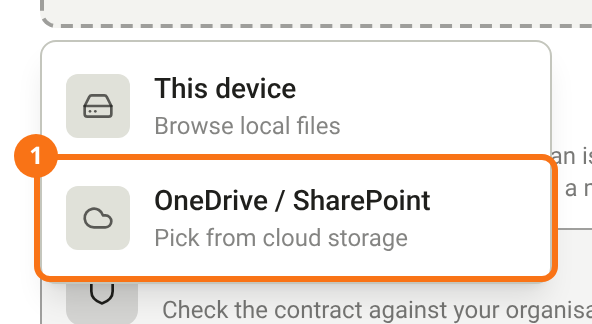
This device browses local files. Select Procore when it is in the menu. See Pick files from Procore.
How sign-in works
| How you signed in to DAIV | What Microsoft does |
|---|---|
| Microsoft | Opens OneDrive with that account when it can (silent sign-in). |
| Google (or another method) | Asks you to sign in to Microsoft before you can pick a file. |
The chooser itself does not hide based on login method — only the Microsoft prompt changes.