Link WhatsApp to your account
Updated 18 October 2026
Link your mobile number so you can message DAIV about your projects on WhatsApp.
Link your mobile number. Messages only come through from a number you've linked.
Link your number
- Select Account in the sidebar.
- Under WhatsApp, enter your number in Mobile number (1), for example 0400 001 002.
- Select Link WhatsApp (2).
- Send the verification message from that phone. Scan the QR code, select Open in WhatsApp if you're already on the phone, or select Copy and send the message exactly as shown.
- Leave the page open until your number shows as linked, with the date you linked it.
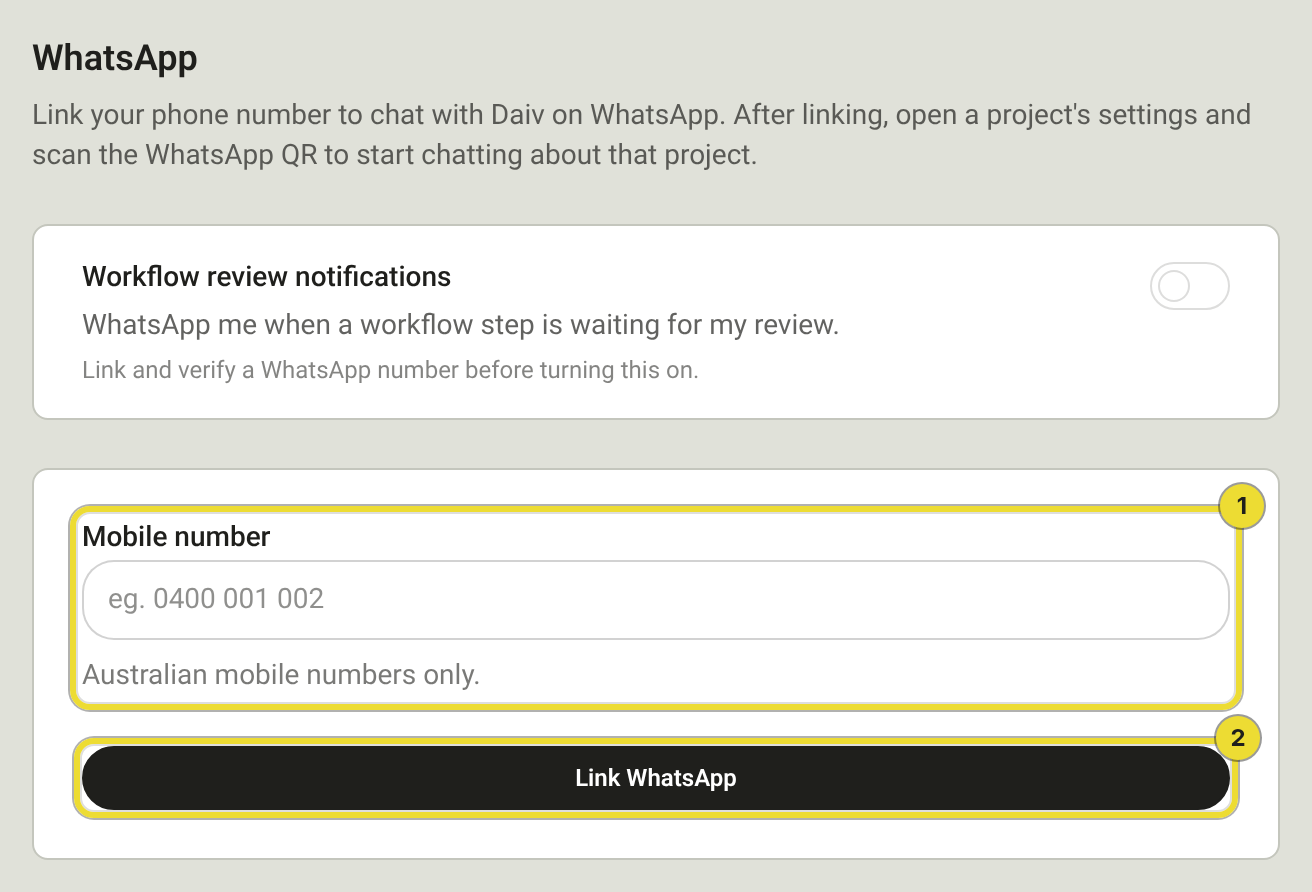
Hear about a review on WhatsApp
Post-Execution
Turn this on after your number is linked.
- Go to Account.
- Under WhatsApp, turn on Workflow review notifications.
DAIV messages that number when a workflow step is waiting for your review.
Start chatting about a project
Post-Execution
- Go to Active Projects and select the project.
- Select Settings and scroll to WhatsApp.
- Scan the QR code, or select Open in WhatsApp, and send the message that opens.
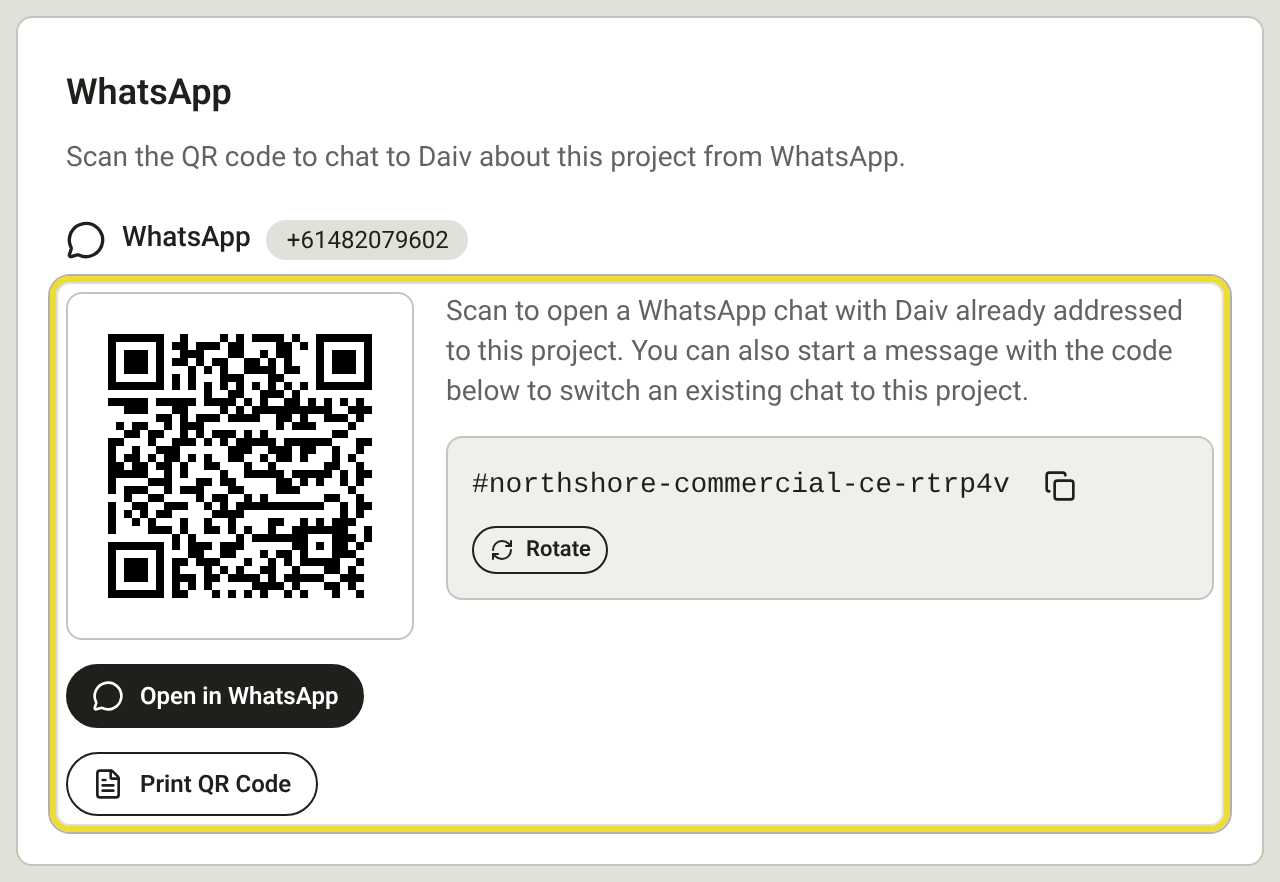
To message a different project, scan that project's QR code, or start the message with its code, such as #riverside-depot-4kq2p9. The code sits next to the QR code.
If the code expires
The verification code only lasts a short time.
- If the panel has closed, select Link WhatsApp again.
- If the panel is still open, select Request new code.
Unlink your number
Unlink when you change phones, then link the new number the same way.
- Go to Account and select Unlink next to your number.
Questions
The code expired
You'll see "That code expired. Request a new one to continue." Get a new one with the steps above.