Sign in for the first time
Updated 18 October 2026
Accept your invitation, sign in with Google or Microsoft, then finish Welcome, WhatsApp and the legal documents.
Sign in with the email address your invitation was sent to.
Accept the invitation
The link lasts seven days and works once.
- Open the invitation email. The subject is "You're invited to join" and your organisation's name.
- Select Accept invitation.
Sign in with Google or Microsoft
Sign in with the Google or Microsoft account for that same email.
- Select Continue with Google or Continue with Microsoft.
- Choose that account.
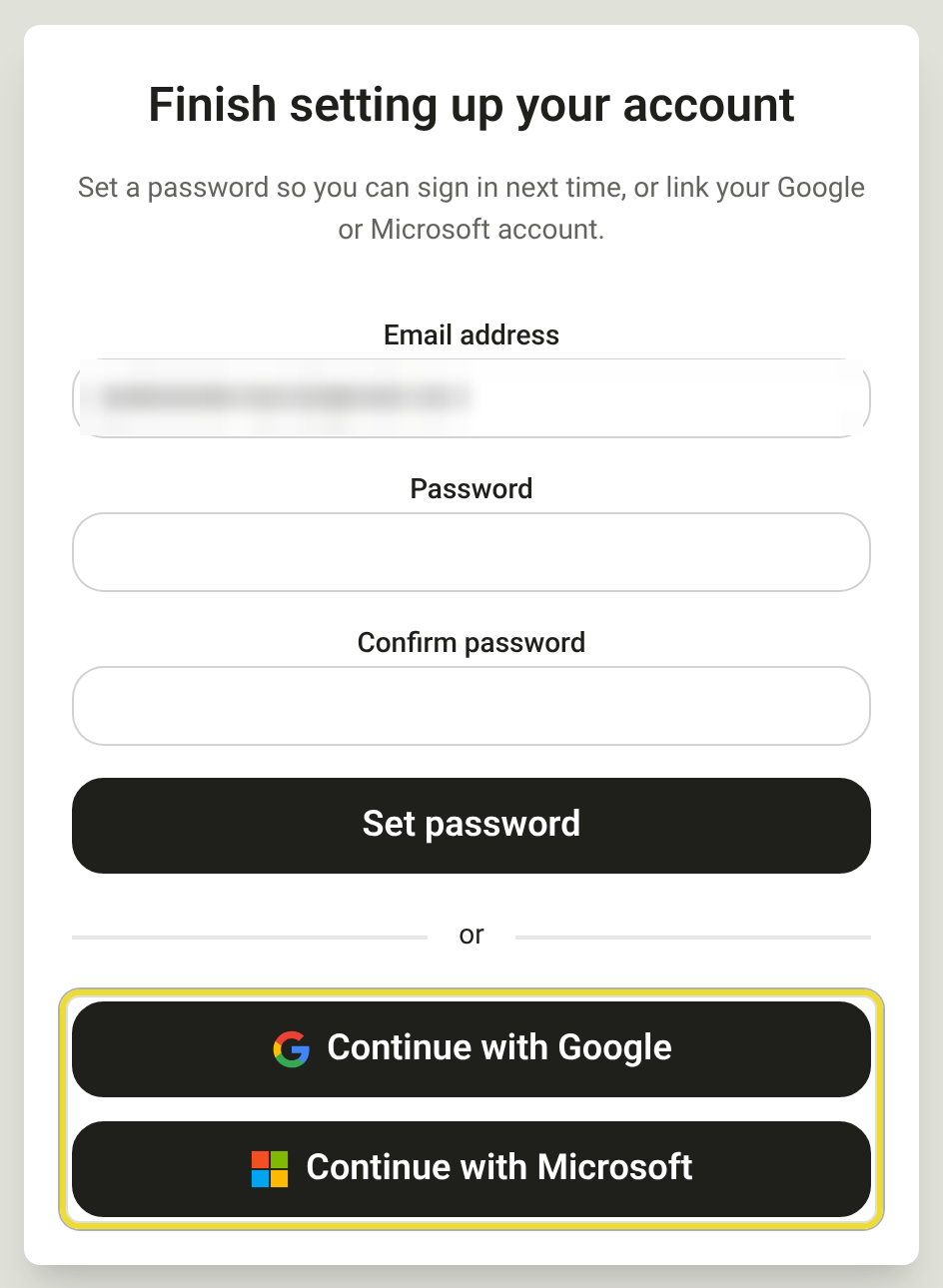
If you already have a DAIV account, select Sign in with Google or Sign in with Microsoft.
If you're already signed in with the invited email, select Continue as your email. If it's a different account, select Sign out and switch account, then sign in with the invited email.
Welcome
Check the organisation and the permission you joined with, then select Get started.
Select Skip for now. Link your number later in Link WhatsApp to your account.
Accept the legal documents
Before you can finish, accept DAIV's terms. Open each document, then tick the box next to it.
- Open each document.
- Tick each I agree to the box.
- Select Finish. If you're the Organisation Owner, select Manage organisation.
You land on the dashboard. An Organisation Owner lands on Manage Organisation.
Questions
The invitation link doesn't work
If you see "Invalid or missing activation link", "Activation link invalid" or "Invitation has expired", ask the person who invited you for a new one.
It says the invitation was sent to a different email
Sign in with the Google or Microsoft account for the email on the invitation. The message is "This invitation was sent to a different email address. Sign in with that account to accept."