Use the dashboard to find your work
Updated 18 October 2026
Find tasks waiting on you, check open work across your projects and get set up with the Getting Started checklist.
Select Dashboard in the sidebar.
Work through the Getting Started checklist
The checklist shows your next setup step, such as adding benchmarks or uploading your first contract. It closes once those steps are done.
- Select the button next to the step after Next:.
- Select Dismiss to hide it. Open it again from Getting Started in the sidebar.
Find tasks waiting on you
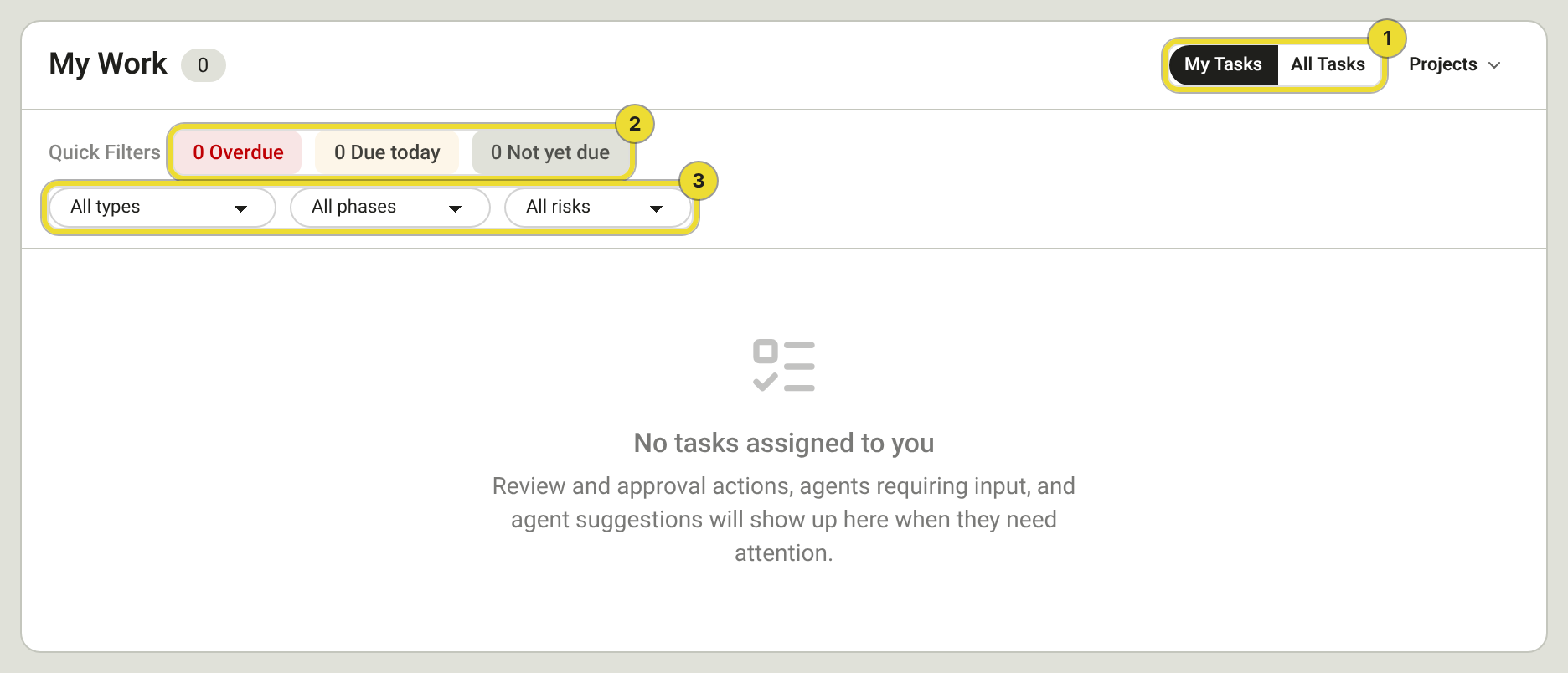
- Select My Tasks (1) for your tasks, or All Tasks for work waiting on others in projects you can see.
- To focus on one project, select Projects, then the project.
- Select Overdue, Due today or Not yet due (2).
- Use the All types, All phases and All risks dropdowns (3) to narrow the list. You only see the filters that apply to your organisation.
- Select a task to open it.
- Select Clear filters to start again.
Check open work on your projects
- If your organisation has both Pre-Execution and Post-Execution, select Post-Execution for live projects or Pre-Execution for contracts under review.
- Check the coloured dot for the project's health, and the line under the name for what's open.
- Select a card. Post-Execution opens the project. Pre-Execution opens the contract review.
See recent activity
Recent activity is deadline warnings, finished workflows and review updates.
- Select Show next to Recent activity.
- Select an item to open it.
Questions
It says no tasks are assigned to you
Nothing needs you right now. The message is "No tasks assigned to you".