Upload a contract for review
Updated 23 October 2026
Upload a contract PDF, choose the scans DAIV runs, and upload a new revision when the other party sends back a new draft.
Select Contracts Under Review in the sidebar, then select Upload Contract.
Upload a contract
Each upload creates a project, so use the name and address your team already knows the job by.
- Enter the Project Name and start typing the Location, then choose the address from the list.
- If you're an Owner or Admin, add anyone else who should work on the review and select Add to project, or select Skip for now. You can change this later from Manage users on the review.
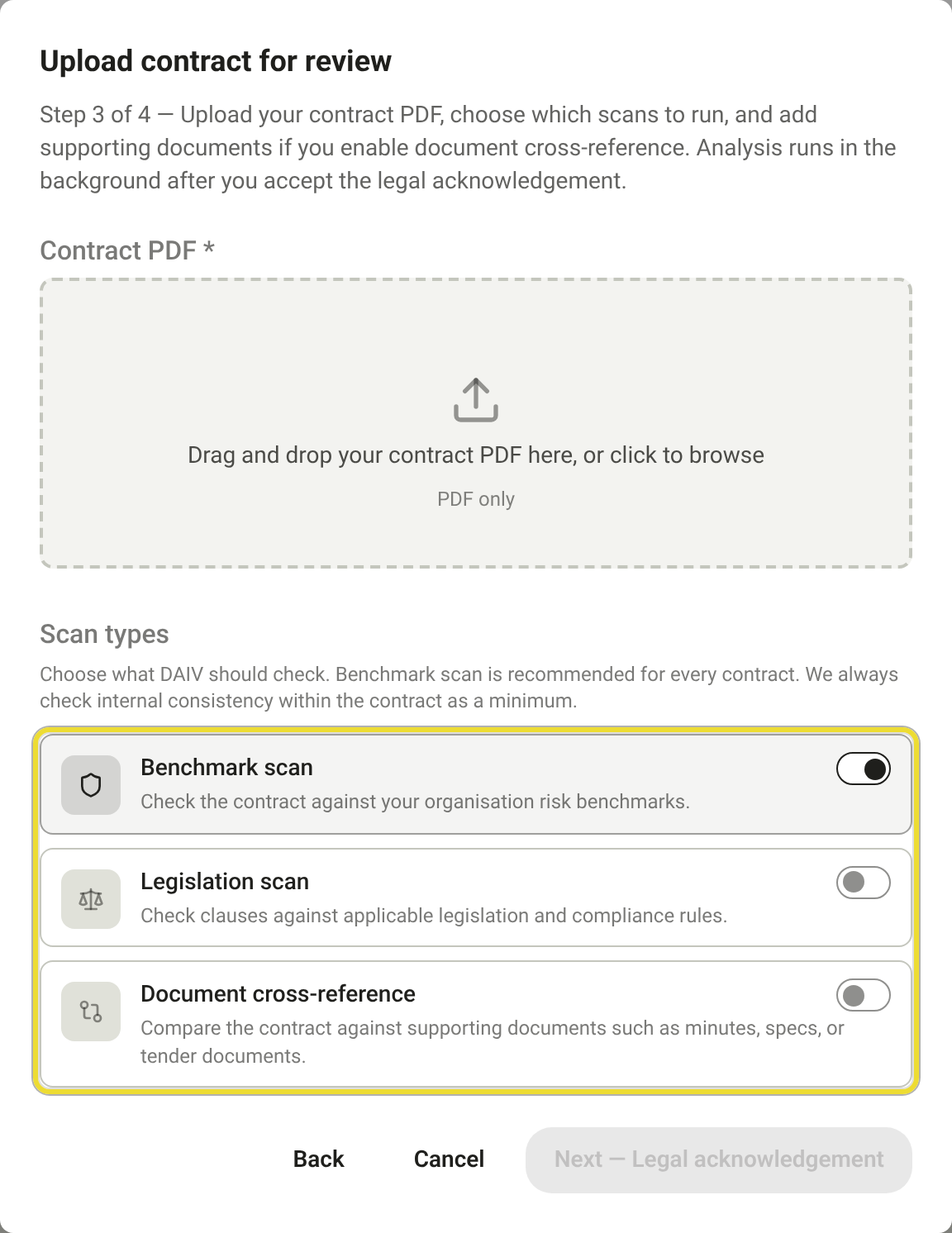
- Drop the contract PDF onto the upload area. Or select the area, then choose This device to browse or OneDrive / SharePoint to pick a file from your Microsoft account.
- Choose your scans (see below), then select Next.
- Read the legal advice notice, tick the box, then select Upload and start review.
Your contract appears under Under Review with its progress. Scanning keeps going if you leave the page, and you'll get a notification when it's done.
If you sign in to DAIV with Microsoft, OneDrive opens with that account. If you sign in another way, Microsoft asks you to sign in before you can pick a file.
Choose your scans
DAIV always checks the contract for clauses that contradict each other. On top of that, choose:
- Benchmark scan to check the contract against your contract benchmarks. Leave this on for every contract.
- Legislation scan to check clauses against the legislation that applies. It adds the most time on a long contract.
- Document cross-reference to compare the contract with supporting PDFs such as tender documents, specifications or meeting minutes. Add each PDF and choose what kind of document it is.
Open the results
- When the card shows Risk analysis complete, select View Risk Analysis.
- Work through the findings. See Review findings and decide.
Upload a new revision
Upload a new revision when the other party sends back an updated draft, or after a submission comes back rejected. DAIV scans it again and shows what changed since the last revision.
- Open the review from Contracts Under Review.
- Select New Revision (2).
- Drop the new PDF onto the upload area, or select the area to pick it from your device or OneDrive / SharePoint. Check the scans.
- Select Upload revision.
To look back at an earlier draft, select it from the Revision list (1).

New Revision is hidden while a submission is waiting for approval. Retract the submission first if you need to upload a new draft.
Questions
Can I upload a Word document?
No. The contract and any supporting documents need to be PDFs.
The scan stopped or failed
Open the review and select Retry scanning to run it again.
I can't see Contracts Under Review
Your organisation needs Pre-Execution turned on. Ask an Owner or Admin.