Build and negotiate a departures schedule
Updated 23 October 2026
Check the amendments your decisions add to the departures schedule, add manual entries, export the schedule, and negotiate it with the issuing party in Excel.
Open the review from Contracts Under Review, then select the Departures Schedule tab.
Check your departures
Each time you choose Proceed with Proposed Amendment or submit your own amendment on a finding, that clause joins the schedule. Clauses you keep as drafted stay out. See Review findings and decide.
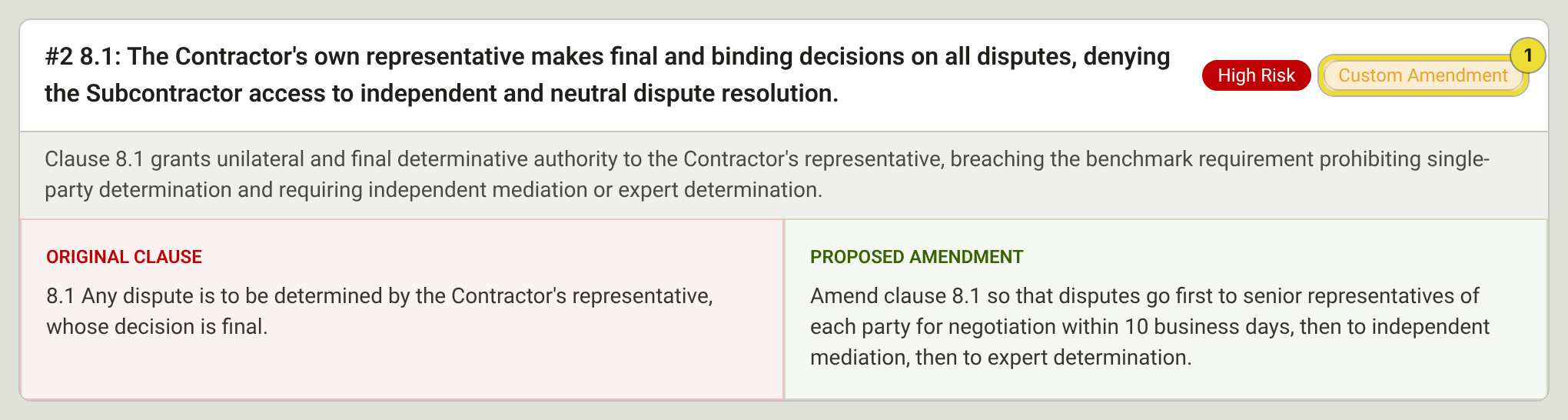
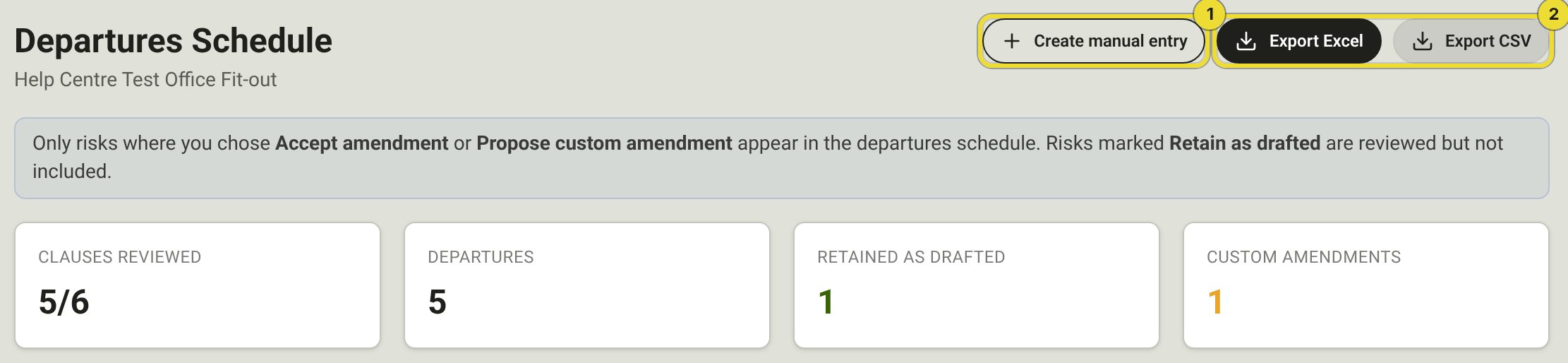
The cards at the top count clauses reviewed, departures, clauses retained as drafted and custom amendments. Each item shows the original clause beside the proposed amendment, with a badge (1) for DAIV's wording or your own.
Add a manual entry
Add a departure your team agreed outside the scan.
- Select Create manual entry (1).
- Choose the Category and enter the original clause text and your proposed amendment. Add the clause reference, title, issue and severity if you have them.
- Select Add departure.
Manual entries export the same way as the rest.
Export the schedule
Select Export Excel or Export CSV (2) at the top of the tab. Use Excel if you plan to negotiate the schedule in DAIV.
Negotiate with the issuing party
- Select Export Excel and send the file to the issuing party.
- When they send it back, select Import returned schedule in Schedule negotiation and choose their Excel file.
- Give DAIV about a minute to check their changes against your benchmarks.
- For each item they changed, select Accept their position, or select Counter, enter your wording and select Submit counter.
- Select Export your response and send the new file back.
Repeat steps 2 to 5 for each round. Choose an earlier round from View round to look back at it.

If your organisation uses standard clauses, select Insert standard clause while you write a counter to start from your organisation's wording.
When the other party sends a new contract PDF, upload it as a new revision. See Upload a contract for review.
Questions
Can I export the schedule after approval?
Yes. Export Excel and Export CSV stay available on submitted and approved reviews. These downloads don't start a new negotiation round.
Import analysis failed
Select Retry analysis, or work through the items without it.
Why is my clause missing from the schedule?
You kept it as drafted, or haven't decided it yet. Change the decision on the finding.