Standard clauses
Updated 24 October 2026
Save your organisation’s clause wording and insert it into contract amendments and subcontract departure responses.
Keep approved clause wording in one library. Reviewers insert that text into amendments and subcontract departure responses — DAIV does not rewrite it.
Open Manage Organisation → Standard clauses. The tile appears when the Standard clauses module is enabled.
Add a clause
- Select Add clause (1).
- Enter Title, Category, Applies when (Contract received, Contract issued, or Both), and Wording.
- Optionally link benchmarks and add drafting notes (notes stay in the library; they are not inserted).
- Set status to Active when reviewers may use it, or leave Pending for approval.
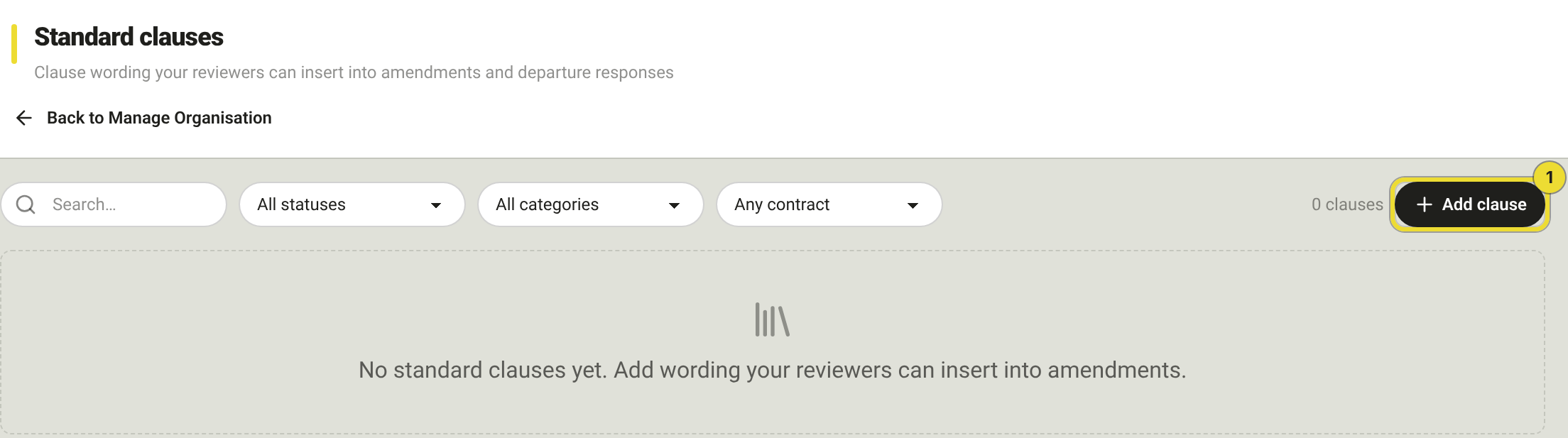
Filter by status, category and when the clause applies. Clear resets filters.
| Status | Meaning |
|---|---|
| Pending | Draft — not offered for insert until approved |
| Active | Offered when someone inserts a standard clause |
| Inactive | Kept in the library but not offered |
Insert a clause during a review
On a contract finding, open Propose Amendment (or edit one) → Insert standard clause. Clauses linked to the finding’s benchmark or category appear first.
On a subcontract departure, use Insert standard clause when the response is Amended or Denied. On a counter, use the same control when you Submit counter.
You can edit the inserted text before you save. Only Active clauses that apply to that contract side are offered.
Save wording from a review
Select Save as standard clause on amendment or response text you want to reuse.
- Owner or Admin → saved Active
- Anyone else → Pending until approved here
Questions
Why is the tile missing?
The organisation needs the Standard clauses module enabled. Contact DAIV if you expect it and do not see the tile.