Review findings and decide
Updated 26 October 2026
Read the risks DAIV found in a contract, decide how to treat each clause, use your standard clauses, and add risks DAIV missed.
Select Contracts Under Review in the sidebar, then select View Risk Analysis on the contract.
Contract PDF toolbar
The contract PDF sits beside the findings. Select a finding to highlight its clause in the PDF.
- Use − and + to zoom, and Page to jump to a page.
- Select Find (1) or press Ctrl+F (⌘F on a Mac) to search the contract.
- Select Focus (2) to fill the screen with the PDF and findings.
- Select Add manual risks (3) to flag a risk DAIV missed.
Pages DAIV classed as drawings or images show a Not Reviewed badge. Scanned pages show how many of their findings you've decided.

Focus mode
Focus mode hides the sidebar, navigation, banners and chat.
- Select Focus in the PDF toolbar.
- To leave, select Exit focus or press Esc.
Read a finding
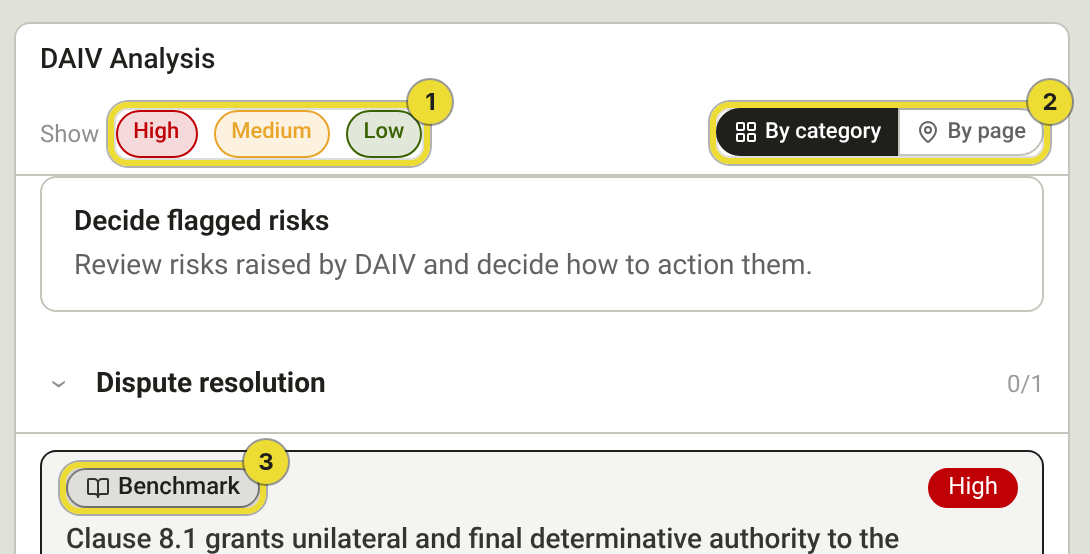
- Choose which severities to show with High, Medium and Low (1).
- Group findings By category or By page (2). DAIV remembers your choice.
- Expand a category and select a finding.
Each finding shows the original clause, the issue, a plain English explanation and DAIV's proposed amendment. Where the PDF strikes through old wording, the finding uses the replacement. The badge (3) shows where it came from: Benchmark, Legislation, Document, Consistency or Manual. A consistency finding also shows the conflicting clause it contradicts.
On a new revision, a Still in contract badge marks risks carried over from the last revision.
Decide on a finding
Select a finding, then choose one:
- Proceed with Proposed Amendment (1) to accept DAIV's wording.
- Original Clause Accepted (2) to keep the clause. Enter a reason if you like, then select Retain as Drafted.
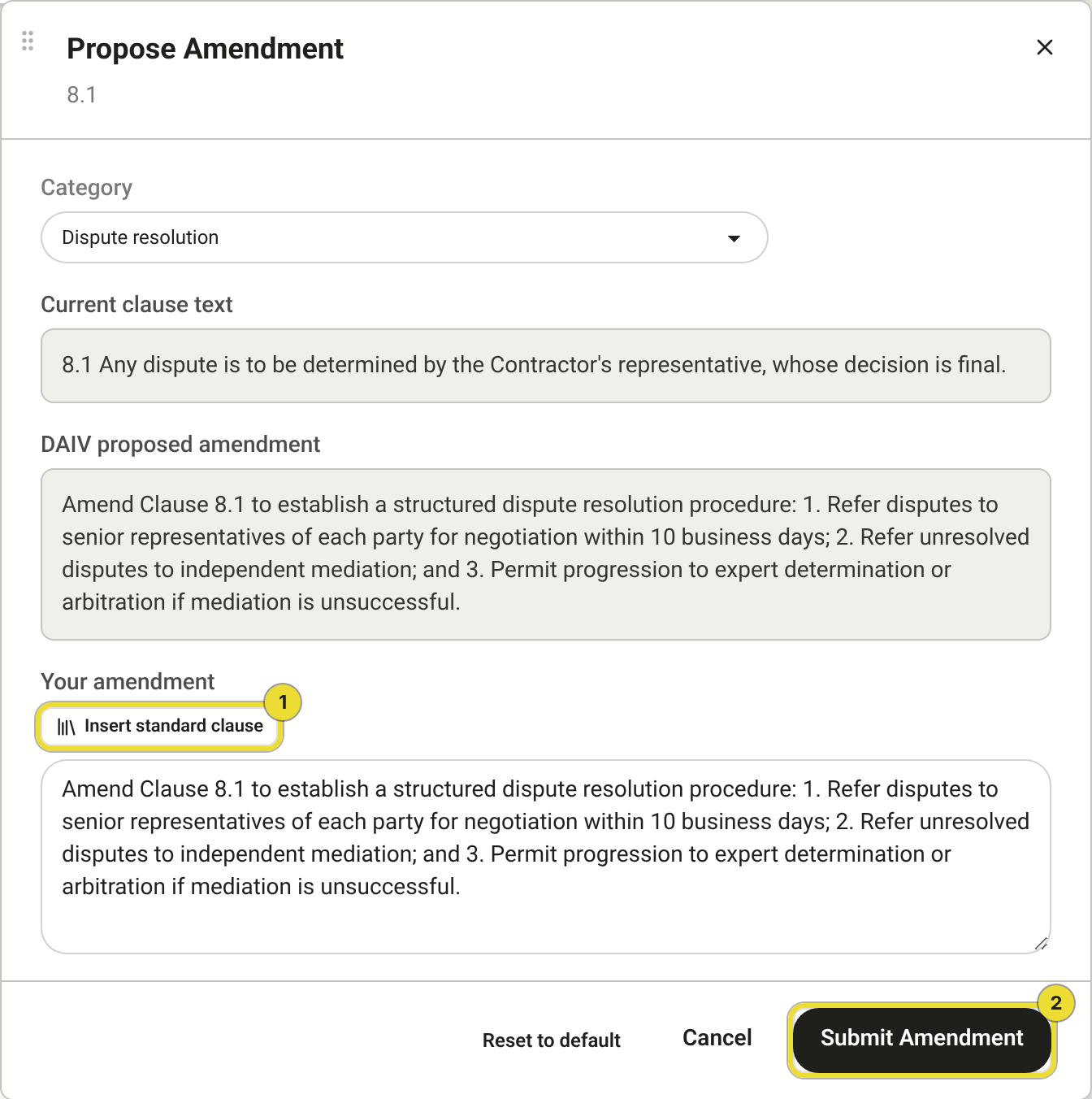
- Propose Amendment (3) to write your own wording. Edit the Proposed amendment, then select Submit Amendment.
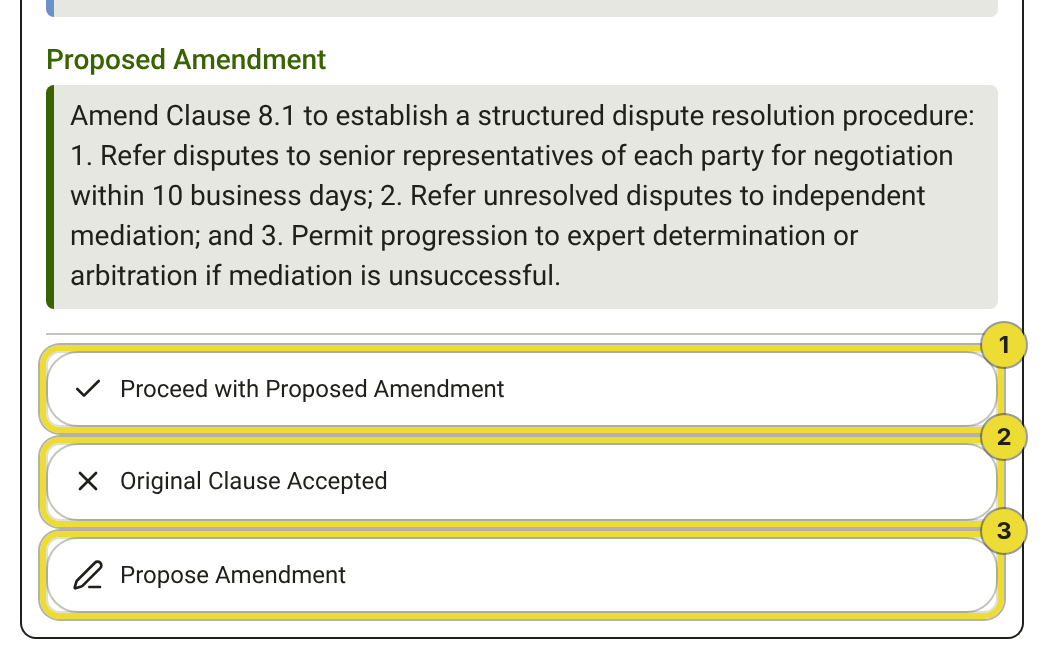
Accepted and custom amendments go to the departures schedule. To change a decision before you submit, select another option on the finding.
Use standard clauses in a review
If your organisation has standard clauses turned on:
- In the Propose Amendment panel, select Insert standard clause (1) and choose a clause. Edit it if you need to, then select Submit Amendment (2).
- When a contract is missing a clause your benchmarks expect, the Missing standard clauses card lists it. Select Use standard clause to start an amendment with that wording.
- To reuse wording you've written, select Save as standard clause on the finding after you submit a custom amendment. Owners and Admins publish it straight away. Users select Submit for approval, and an Owner or Admin must approve it before anyone can insert it.
Add a missed risk
- Select Add manual risks in the PDF toolbar.
- Drag a box around the clause in the PDF.
- Describe the risk and save it.
- Select Done adding risks.
Your risks appear under Manually Added Risks and need a decision before you submit.
Previously raised
The Previously Raised section holds risks your organisation usually accepts as drafted on approved reviews. You don't need to decide them before you submit. Any left undecided count as no action when the review is approved.
High severity risks always stay in the main list. The section may be empty until your organisation has approved a few reviews.
Questions
Why can't I submit?
Every finding outside Previously Raised needs a decision, unless your organisation allows submitting with undecided risks. See Submit and approve a contract review.
The scan stopped or failed
Select Retry scanning. If you uploaded the wrong file, select Cancel scanning while it runs, then upload a new revision.