Submit and approve a contract review
Updated 23 October 2026
Submit a finished contract review for sign-off, retract it if you need changes, and approve or reject a review sent to you.
Open the review from Contracts Under Review and decide every required finding first.
Submit a review
- Check the latest revision is selected and its scan has finished.
- Select the submit button in the review header (1). Which one you see depends on your organisation's settings:
- Submit for project manager review sends it to the project manager first.
- Submit for final approval sends it straight to the final approver.
- Close out approves the review straight away when your organisation has no approval steps.

If your organisation allows submitting with undecided risks and some are left, DAIV asks for one reason. Enter it and select Submit. Those risks are recorded as Original Clause Accepted with your reason.
The review locks while it waits for approval. Approvers get a notification and see it in My Work on their dashboard.
To change something after you submit, select Retract submission, then Retract. Make your changes and submit again. Only the person who submitted, or an Owner or Admin, can retract.
Find reviews waiting for you
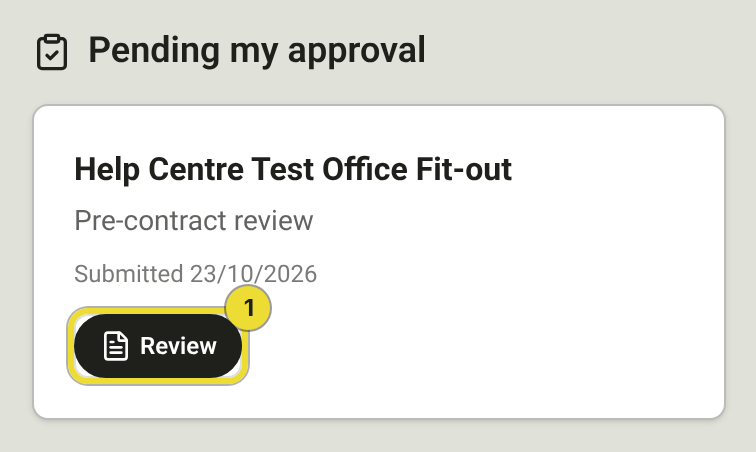
Go to Contracts Under Review. Reviews waiting for you are under Pending my approval. Select Review (1) to open one.
Approve or reject a review
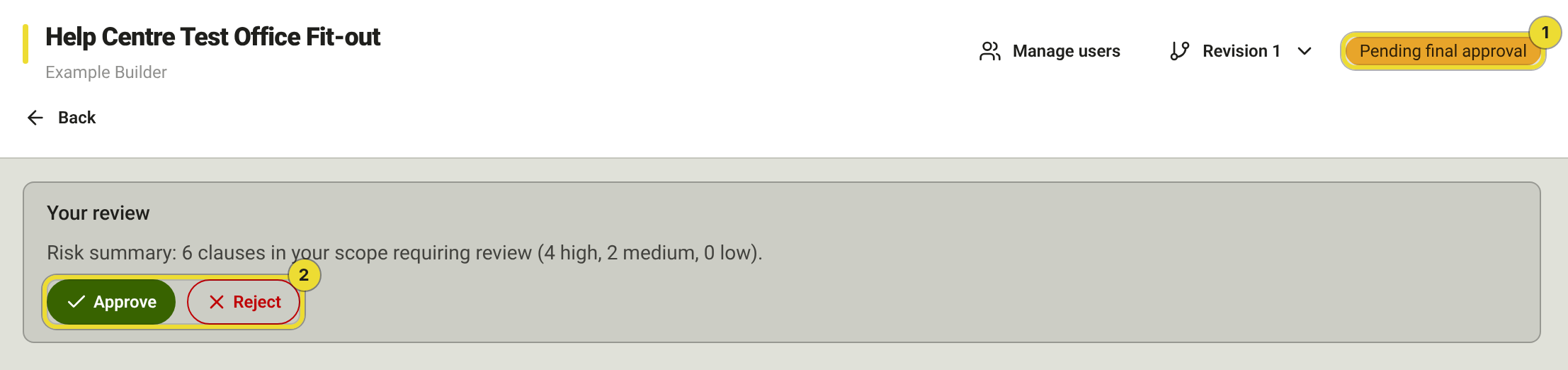
- Check the status badge (1) shows the review is waiting for you.
- Read the risk summary in the Your review panel, then check the findings and departures schedule.
- Select Approve or Reject (2). If you reject, add a note explaining why so the team knows what to fix, then select Reject.
When a project manager approves, the review moves to the final approver if your organisation has one. Otherwise it's approved.
After approval
The review shows Approved and becomes read-only. It stays under Approved on Contracts Under Review until you move it to Post-Execution. Your approved decisions also shape Previously Raised on future reviews.
After a rejection
- Open the review and read the reasons in the Project Manager Review Outcome banner.
- Update your decisions. If the other party sent a new draft, upload a new revision.
- Submit again.
Questions
Why is the submit button greyed out?
A required finding is undecided, the scan hasn't finished or the scan is incomplete. Check the findings outside Previously Raised.
Who are the approvers?
Owners and Admins choose them in Pre-Execution Settings, under Project Manager Review and Final Approval. Approval levels can send each risk category to a different project manager.
I added an approver but they can't see the review
Approvers are set when you submit. Retract the submission and submit again.