Set up contract benchmarks
Updated 26 October 2026
Record the commercial positions DAIV checks when it scans a contract you receive or a subcontract you issue.
Go to Manage Organisation › Contract Benchmarks.
Check your benchmark list
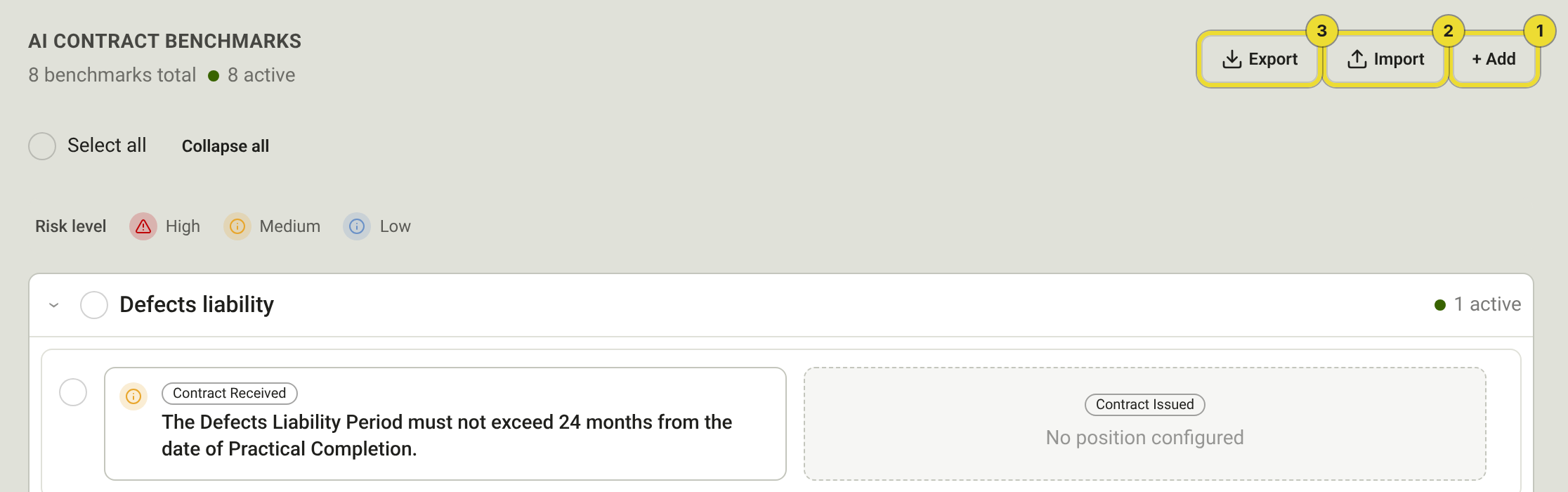
Benchmarks are grouped by category. Each row shows its Contract Received position, used when you review a contract issued to you, and its Contract Issued position, used when you check departures on a subcontract you issue.
- Select a category to open it, or select Expand all.
- Check the icon on each position for its risk level: high, medium or low.
- Select the position text on a row to open and edit it.
Add a benchmark
Write the position in your own words. DAIV turns it into a preferred and an acceptable position for you to check.
- Select Add (1).
- Under Apply to, choose Contract Received, Contract Issued or Both positions. You only see this if your organisation has both Pre-Execution and Post-Execution.
- Enter the Commercial position, for example the longest payment term you'll accept.
- Choose the Severity and Category.
- Under How DAIV checks this, turn on Must appear in the contract to flag a contract that leaves the topic out, and Check clause wording to compare the clause with your positions. You can turn on both.
- Turn on Preferred position only if any change from your preferred wording should be flagged.
- Select Add.
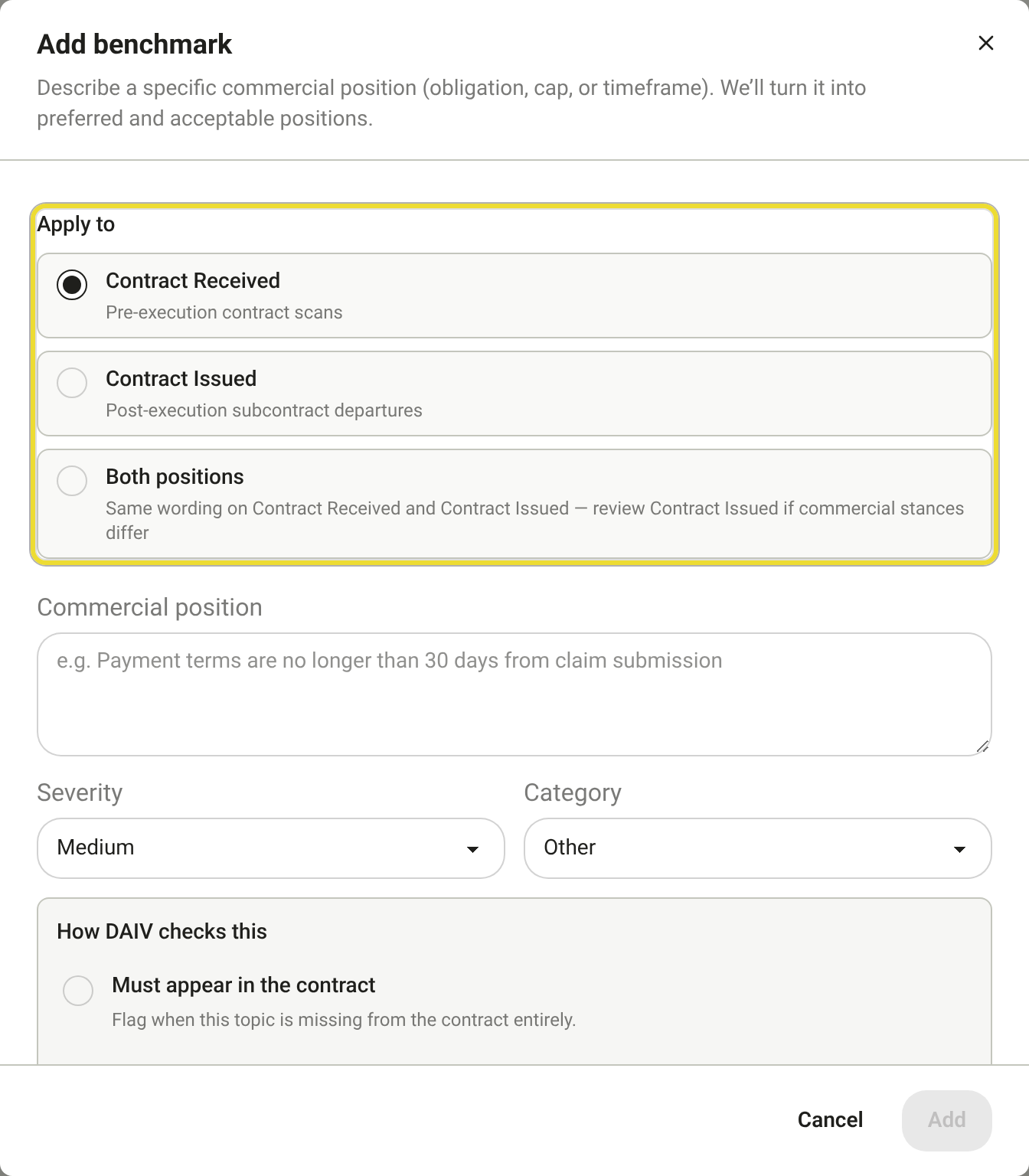
Choose Both positions only when your stance is the same either way. You can still adjust the Contract Issued wording afterwards.
Change a benchmark
- Select the position text on the row.
- Select the Contract Received or Contract Issued tab.
- Update When this applies, the Preferred position, the Acceptable position or the Severity.
- Select Save. To stop using it without losing it, select Deactivate. To delete it, select Remove.
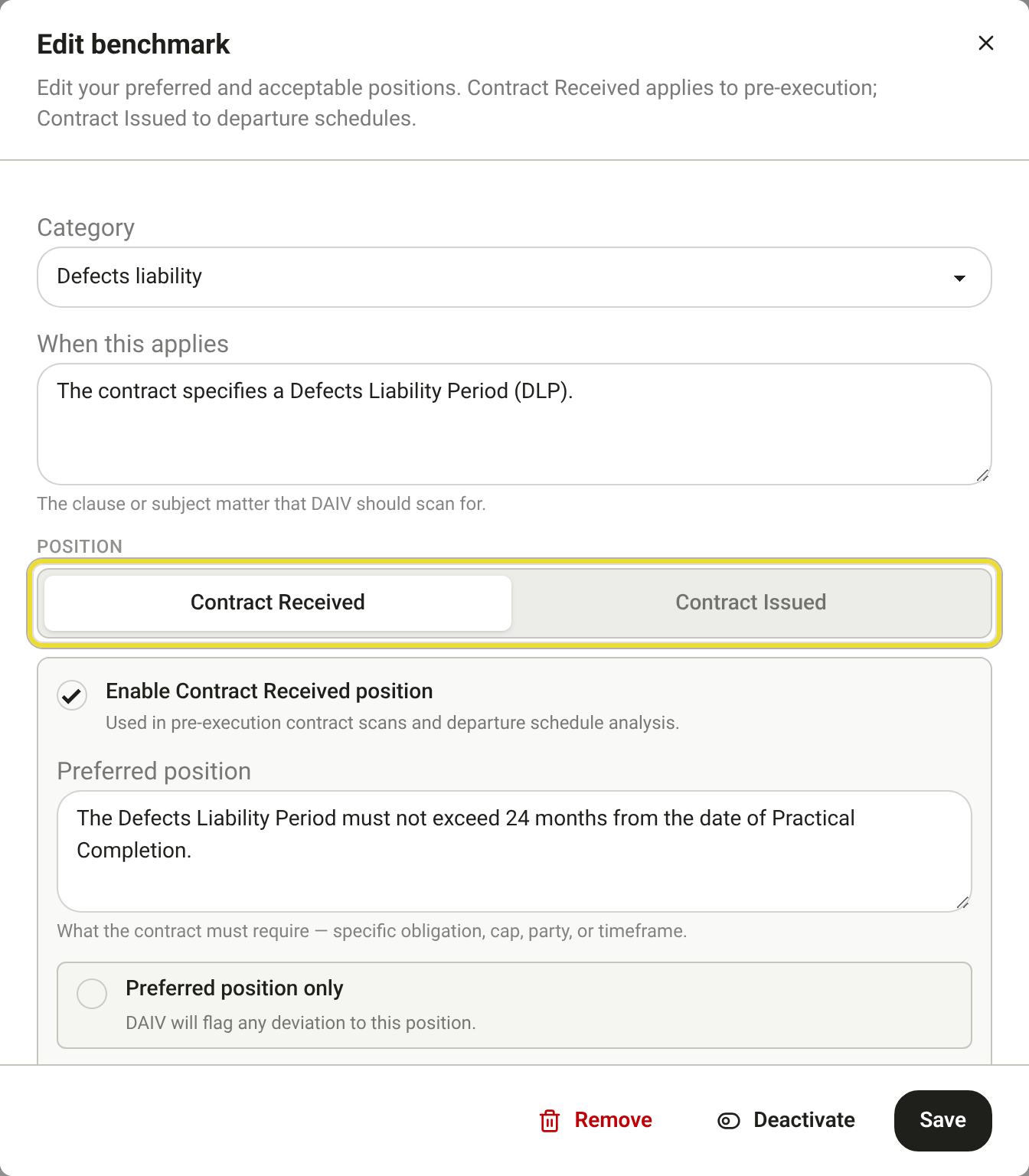
Turning on Preferred position only clears the Acceptable position. If you turn it off later, you'll need to enter it again.
Import or export benchmarks
- Select Import (2) and choose which position the new rows apply to.
- Select Download XLSX template, fill it in, and add that file so When this applies and Preferred position stay as you entered them. Those two columns are required.
- Add any other Excel, Word, PowerPoint, PDF or text file in the same window. Check each row before you approve it.
- The import keeps running if you close the window.
- Select the rows marked Pending, then select Approve.
- To export, select Export (3). You get a PDF of the rows you selected, or of every benchmark if none are selected.
To change the category, severity or checks on several rows at once, select them and then select Edit.
Save manual risks as benchmarks
Pre-Execution
Reviewers can add their own risks to a contract review. Turn on Manual risk flags at the bottom of the page to have the option to save approved manual risks as benchmarks ticked by default.
Questions
I changed a benchmark but my review still shows the old result
Changes apply to the next scan. Upload a new revision of the contract to scan it again. See Upload a contract.
My subcontract departures don't show any benchmark risks
Subcontract checks only use Contract Issued positions. Add or turn on a Contract Issued position on the rows you need.