Team and access
Updated 24 October 2026
Invite organisation members and set Owner, Admin, User, Viewer or Viewer Admin permissions.
Invite people, set their organisation permission, and control who can open Manage Organisation and which projects they can work on.
Open Manage Organisation → Team & Access.
Organisation permissions
| Permission | What they can do |
|---|---|
| Owner | Full control, including Transfer ownership. Exactly one per organisation. |
| Admin | Change org settings, see all projects, create and delete projects, manage members. |
| User | Work on projects they belong to; create projects. Cannot open Manage Organisation. |
| Viewer | Read-only on projects they belong to. Cannot change data or open Manage Organisation. |
| Viewer Admin | Read-only across all projects and org settings. Cannot invite, edit settings, or write on projects. |
Job titles on a member card are display-only. Project functions (Director, Contract Administrator, and so on) route agent steps — they do not replace organisation permissions.
Invite a colleague
- Select Invite member (1).
- Enter Email address, choose Permission, and optionally a Title.
- Select Send invitation.
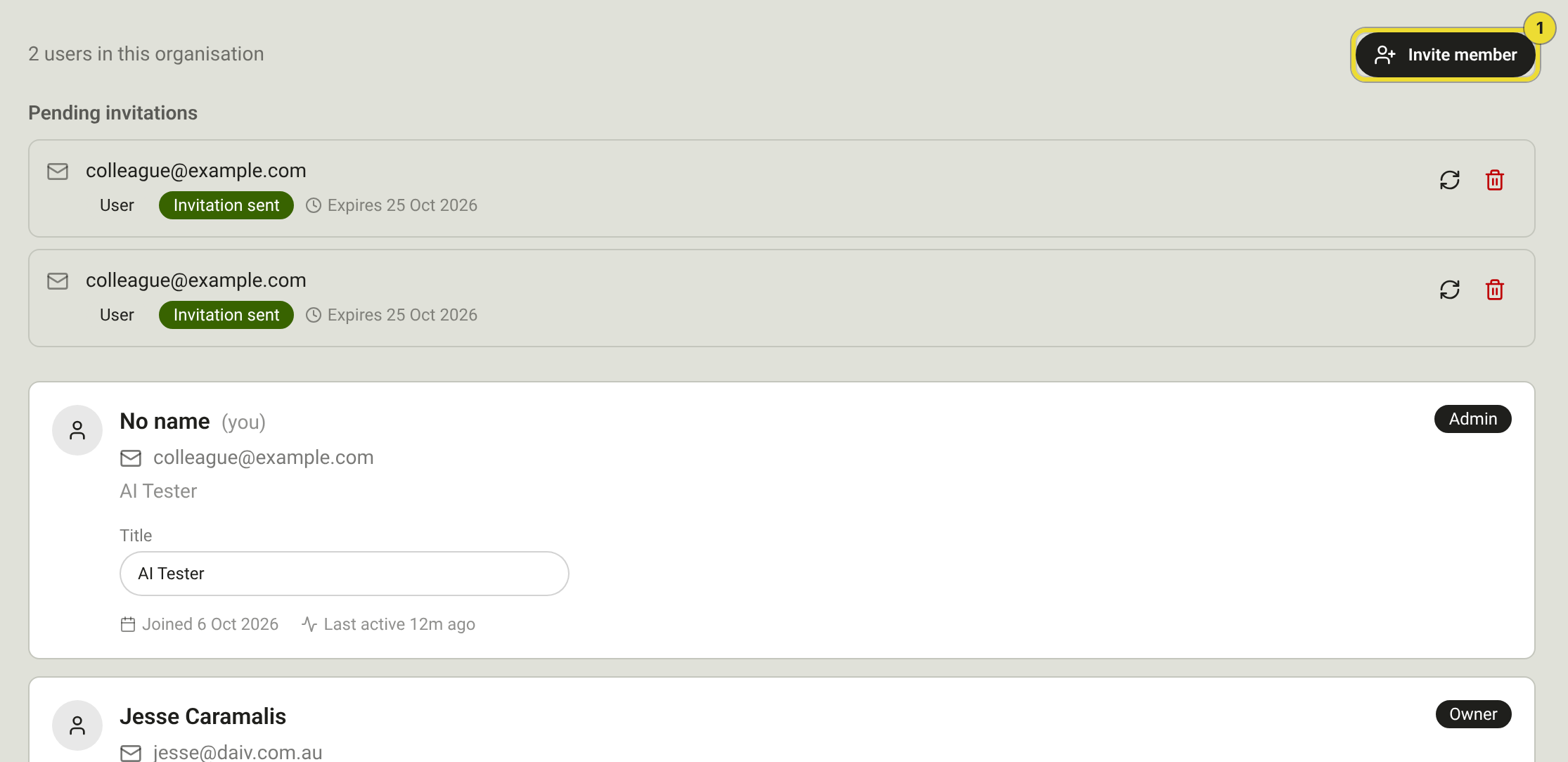
Invitations expire after seven days. The invitee must sign in with Google or Microsoft using the same email the invitation used.
Pending invitations
Under Pending invitations you can Resend or Cancel. Expired rows stay listed — resend to issue a fresh link instead of creating a second invite.
Change permission or transfer ownership
Only the Owner can change someone’s permission after they join, or Transfer ownership. Admins cannot change permissions. Permission is locked while a member is Deactivated — reactivate them first.
Deactivate or remove
| Action | Effect |
|---|---|
| Deactivate | Keeps history. They cannot sign in, join projects, or receive ownership. Cleared from named approver lists. |
| Remove from organisation | Deletes the membership and removes them from every project. |
Owners can deactivate or remove Admins and Users (and Viewer roles as shown in the UI). Admins can act on Users only. You cannot deactivate or remove yourself or the Owner.
Add someone to a project
They must already be an active organisation member.
- On the project open Settings → Manage Users → Add to project.
- Optionally assign a Project function and mark Primary for function for agent routing.
| Project function | Typical use |
|---|---|
| Director | Senior approvals |
| Contract Administrator | Commercial and contract steps |
| Project Manager | Delivery |
| Site Manager | Site steps |
| Estimator | Pricing |
Removing someone from a project does not remove them from the organisation.
Questions
Why is Invite member missing?
You need Owner or Admin. Viewer Admin can view Team & Access but cannot invite.
Can a User open Manage Organisation?
No. Only Owners, Admins and Viewer Admins (read-only) can open it.