Create and set up a project
Updated 26 October 2026
Create or import a live project, review the overview, approve head-contract agents, and set members, the site time zone and inbound email.
Open Active Projects in the sidebar.
Create or import a project
On Manage Projects, create a blank project or import an approved pre-contract review.
- To create from scratch, select New Project, enter the name and location, add members and project functions, then upload the head contract PDF when you're ready.
- To bring in an approved review, select Import Project. See Move a contract to Post-Execution.
DAIV scans the head contract and sets up agents. You can leave the page while it runs.
Review the project overview
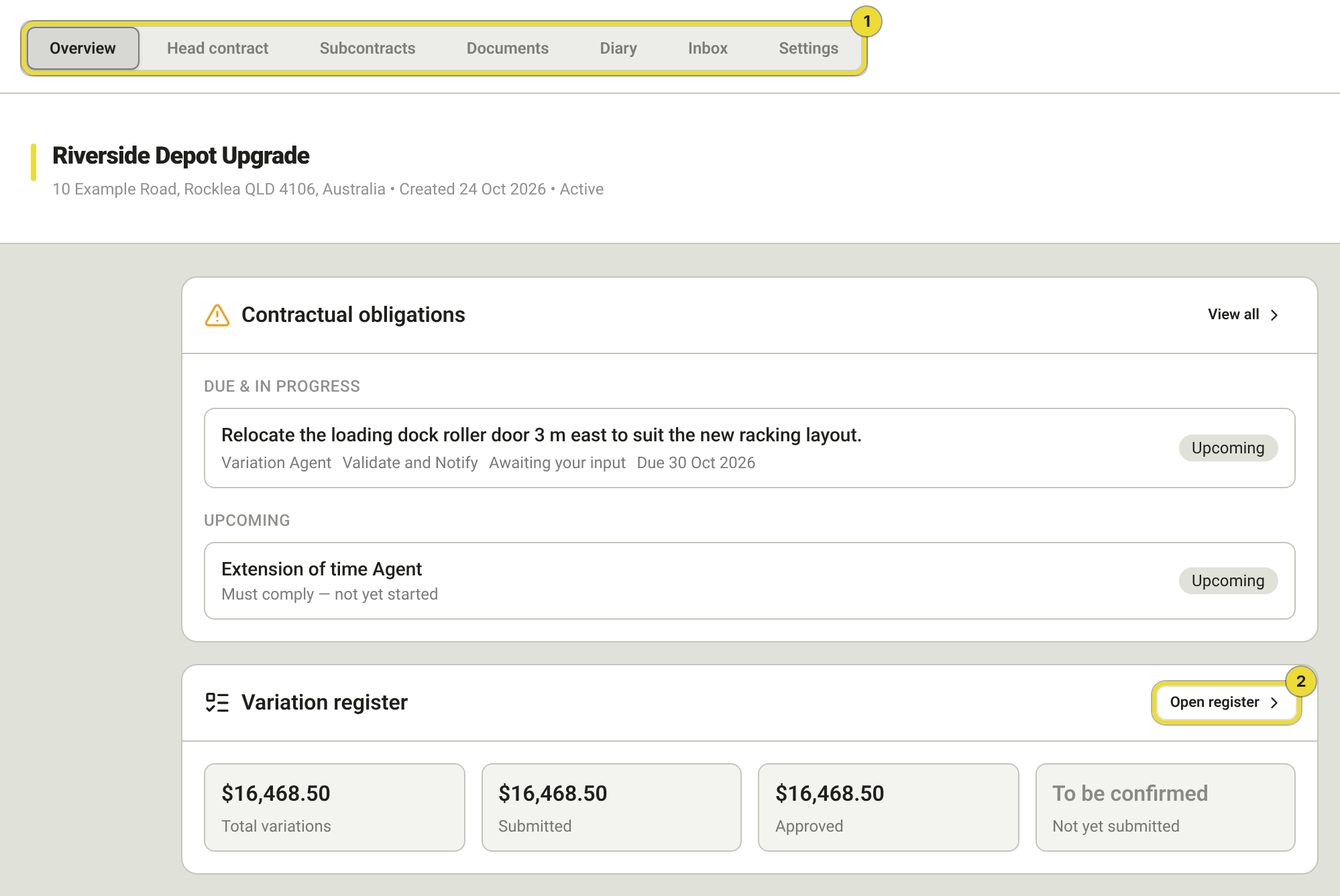
Open a project to see its overview: address and status, the head-contract summary, and shortcuts into registers and agents.
- Use the top tabs (1) to move between Overview, Head contract, Subcontracts, Documents, Diary, Inbox and Settings.
- Select Open register (2) on a variation or EOT card when you want the full list rather than the latest run.
See Manage documents and insurance for the Documents tab and project insurance.
Approve agents on the head contract
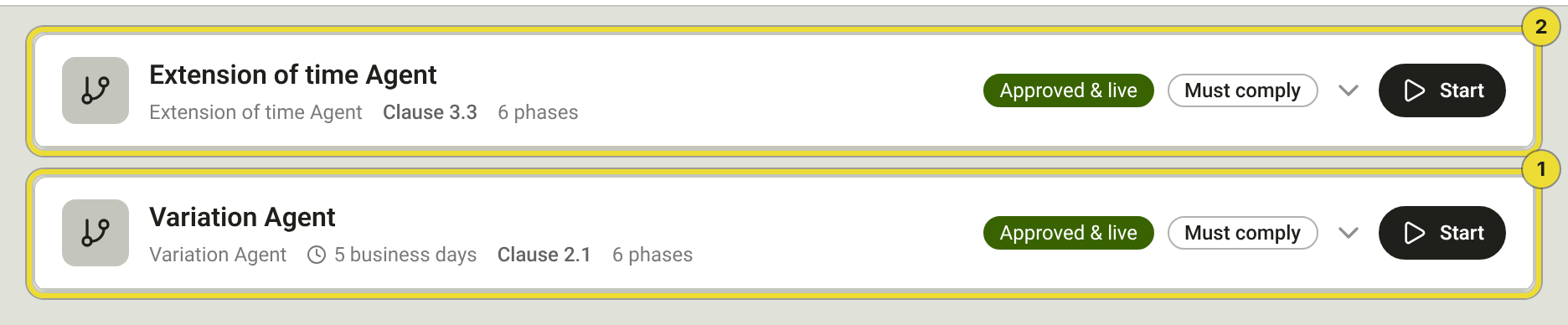
Open Head contract → Agents → Active Agents. Only Variation and Extension of time are generally available.
- Check each agent shows Approved & live.
- Start a run with Start when you need one, or wait for DAIV to open a run from chat, a document or a diary suggestion.
Assign who reviews each step under Functions on the same Agents tab (for example Contract Administrator). See Run and review agents on a project.
Set members and inbound email
Open Settings.
- Select Manage Users (1) to add or remove people and set project functions.
- Under Email ingestion, leave inbound email on and keep Allowed senders (2) limited to the domains and addresses you trust. Unknown senders are quarantined until someone approves them.
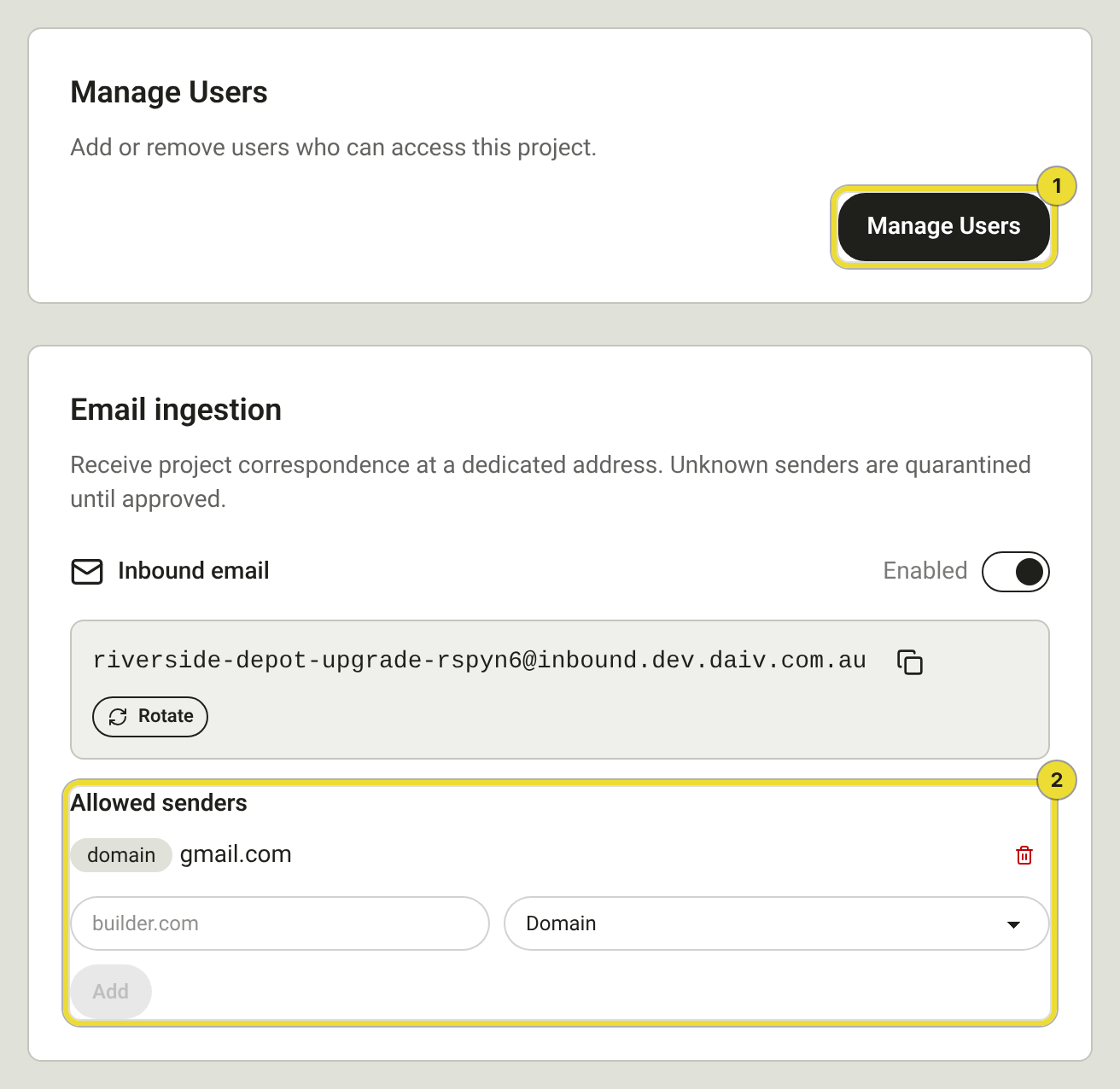
Copy the project's inbound address if people need to forward correspondence into the project inbox.
Site time zone
Open Settings.
Check Site time zone. The time zone is automatically derived from the project address, or from Procore when the project is linked. Diary dates, notice dates and deadlines use that day.
Questions
I can't create a project
If New Project or Import Project is missing, you're a Viewer or Viewer Admin. If the button is greyed out, ask an Owner or Admin to turn on Post-Execution (and Pre-Execution for import).
Agents stay pending after the scan
Open Head contract → Agents and approve each agent that your organisation uses. Until they're approved, Start stays unavailable.