Upload and negotiate subcontracts
Updated 24 October 2026
Upload subcontract PDFs, negotiate departure schedules against issuing benchmarks and the head contract, and mark packages executed — with optional reviewer approval.
Use Subcontracts on an active project to upload a trade package, negotiate departures with the subcontractor, and mark the package Active when it is signed.
Open the project → Subcontracts.
Add a subcontract package
- Select New subcontract (1). The Departures Schedule tab (2) lists negotiation across packages when you need a project-wide view.
- Enter Title and optionally Trade / package. Under Subcontractor, search Company by name, email or ABN — a Saved profile fills company, ABN and email.
- Upload the subcontract PDF and wait until DAIV finishes reading it (Ready).
- Leave Already executed / active unticked when you still need to negotiate departures.
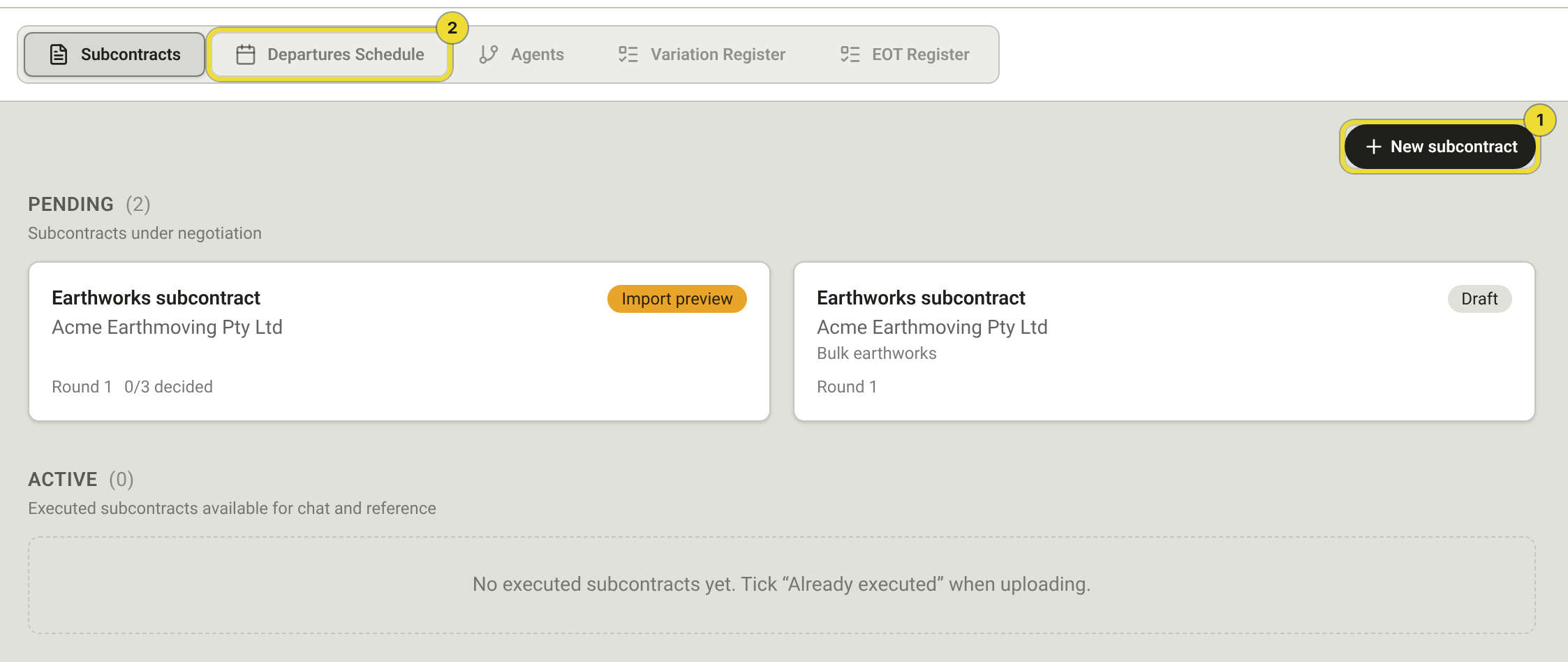
On the package list, select the info control beside the company name (Subcontractor details) to see the saved name, trade, ABN, email and other names on that profile.
Already executed subcontracts
If the subcontract is already signed and you only need the PDF on file (for reference or chat), tick Already executed / active when creating the package. DAIV creates it in Active status straight away — you do not run departure negotiation on that package.
An Active subcontract is read-only for departure schedule actions. You cannot import schedules, record decisions or mark rounds on an executed package.
Subcontract status
| Status | Meaning |
|---|---|
| Draft | Created; PDF may still be processing |
| Awaiting subcontractor | Waiting for the subcontractor to return a departure schedule |
| Analyzing | DAIV is analysing an imported schedule |
| Import preview / Review | You can check imported rows or review risks and record decisions |
| Response sent | Your response for this round has been exported or sent |
| Agreed | Departures agreed; awaiting formal execution |
| Active | Executed (signed) — available for reference |
Focus mode on the subcontract PDF
Open a package to see the subcontract PDF beside the departure panel. The PDF toolbar matches contract review (Zoom, Page, Find, Focus).
- Use Focus (1) when comparing subcontract wording with departure risks on one screen.
- Select Submit for approval (2) when your organisation requires internal sign-off before execution — see Subcontract execution approval.
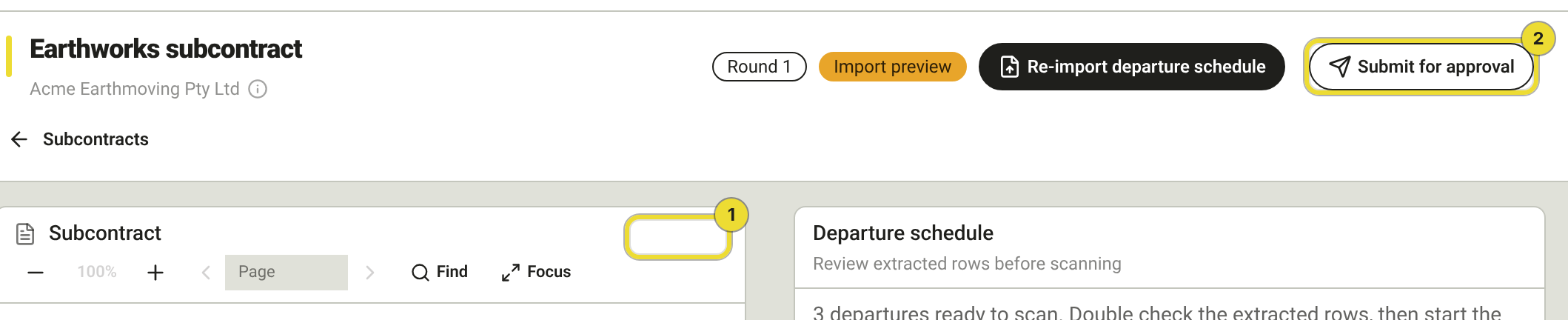
See Review findings and decide for the shared PDF toolbar.
Subcontract departure schedule
The departure schedule is for your role as main contractor issuing a subcontract. Import the schedule the subcontractor returns, review the risks DAIV finds, and export your response.
Configure issuing contract benchmarks under Manage Organisation → Contract Benchmarks before your first import — see Contract benchmarks. Pre-Execution receiving benchmarks are not used here.
End-to-end workflow
- Mark sent to subcontractor — opens round 1 and records that the package is with the subcontractor (when that control is available on the package).
- Import schedule — upload the subcontractor's Excel, CSV or Word table. Check the rows in Import preview, then Scan departures.
- Review — read risks on each row and record Accepted, Amended or Denied. Amended or denied rows need response text. When Standard clauses is enabled, Insert standard clause fills that response — see Standard clauses.
- Export response — download the Excel with your columns filled, then Mark response sent.
- Next round — when the subcontractor returns again, import the updated schedule (or start the next round while waiting). Repeat until positions are agreed.
- Mark round agreed — close the round when negotiation on that iteration is complete.
- Mark as executed — when the subcontract is formally signed (after approval if required).
Import preview
After upload, DAIV opens Import preview before analysis starts.
- Edit a row (Item, Clause ref, Category, Proposed departure), Add row (2), or Delete a row that should not be scanned.
- Select Scan departures (1) when the rows look right, or Discard if the file is wrong.
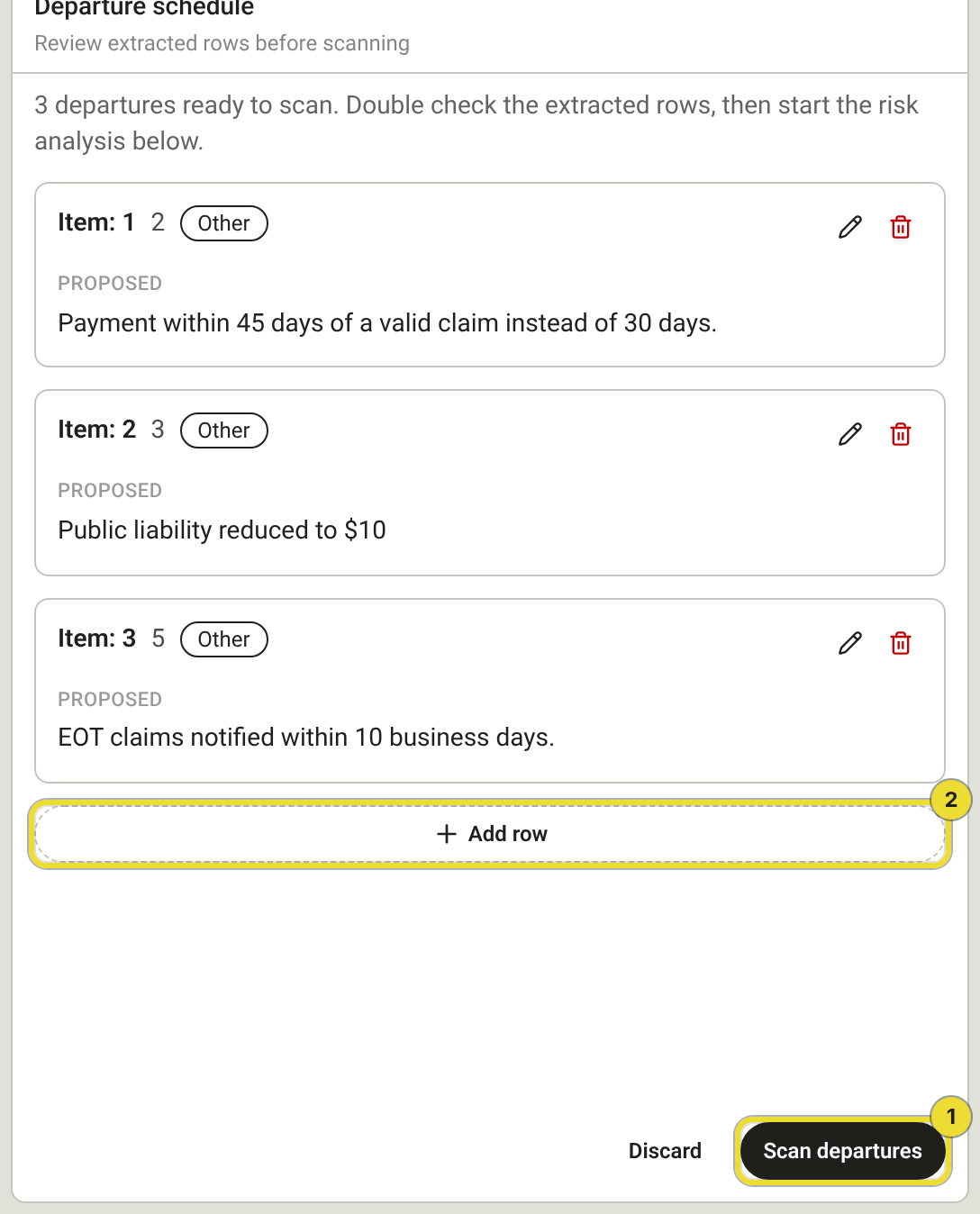
While the scan runs you see progress (Scanning departures). Use Cancel scan to stop a scan that is still running. When it finishes, the subcontract status becomes Review.
Exporting your response still uses the DAIV Excel template. Pre-Execution departure import stays on that Excel template only — see Departures schedule.
What DAIV checks on each row
| Check | What you see |
|---|---|
| Issuing benchmarks | Risks where the departure conflicts with your organisation's issuing preferred or acceptable positions |
| Head contract | Risks where the departure conflicts with your project head contract — with the relevant clause quoted where DAIV can match it |
| Risk summary | A plain-language summary of the combined risks on the row — for your review, not an Accept/Reject recommendation |
| Insurance (on the row) | When a departure proposes a change to insurance cover, risks compare the subcontractor's proposed minimum with your flow-down requirement |
| Additional scope | Rows where the subcontractor proposes new scope without anchoring to a subcontract clause |
For issuing benchmarks with Preferred position only enabled, DAIV flags any departure from your preferred position.
Row badges
| Badge | Meaning |
|---|---|
| New item requested | The subcontractor is proposing a new clause or schedule provision |
| Additional item | DAIV could not link the row to a clause in the subcontract PDF — PDF highlight is unavailable |
| Raised by analysis | DAIV added this row during analysis rather than from the imported schedule |
Head contract position and View in HC
When DAIV links a departure to the principal agreement, you see Head contract position with clause reference and excerpt. Select View in HC to open Head contract in a new tab, scrolled to that clause.
Keep the departure panel and head contract tab open side by side when several clauses reference the same head contract section.
Insurance cover is assessed per departure row when that row proposes a change to cover. DAIV uses the lower of your head-contract insurance minimum and your active organisation policy cover as the required floor.
Reviewing a round
On the first round, every imported row needs your decision before you can export a response.
On later rounds, rows are grouped:
| Group | Meaning |
|---|---|
| Contested | The subcontractor changed their position — review risks and decide again |
| Agreed | Positions match what was settled before — you still confirm each agreed row before export |
Agreed rows from a prior round do not carry your decision forward automatically. Confirm them again on the new round before Mark response sent.
For contested rows, DAIV shows your prior position alongside the subcontractor's incoming response.
Export and send your response
- Complete a decision on every row in the round.
- Export the response Excel — your response text and decision labels fill columns G and H.
- Mark response sent — locks the round for export and sets status to Response sent.
Send the exported file to the subcontractor outside DAIV (email or your usual process). If analysis fails or you changed issuing benchmarks after import, use Retry analysis on the round.
Subcontract execution approval
When Require approval is enabled in Post-Execution settings, a subcontract must pass internal reviewer sign-off before you can Mark as executed.
Submitting for approval
- Open the subcontract package.
- Select Submit for approval.
- Confirm or adjust the Reviewers list — defaults come from org settings.
- Select Submit for approval in the dialog.
You can submit at any negotiation stage. Undecided departures show warnings but do not block submission. If negotiation is still in progress, DAIV reminds you to consider waiting until departures are agreed.
While approval is pending:
- The submitter can Retract submission to withdraw and make changes.
- Reviewers see Your execution approval on the subcontract with Approve and Reject actions.
- All selected reviewers must approve before execution can proceed.
After approval
| Outcome | What happens next |
|---|---|
| Approved | Mark as executed becomes available when the subcontract is signed |
| Rejected | Read rejection notes, address feedback, and submit again |
If negotiation continues after you submitted for approval, DAIV may flag that the approval snapshot is from an earlier round. Consider retracting and submitting again after the current round is final.
When execution approval is required, Mark as executed stays disabled until approval completes — even if the package status is Agreed.
Mark a subcontract as executed
When negotiation is complete and the subcontract is formally signed:
- Finish the final departure round — Mark round agreed when positions are settled.
- Complete execution approval when your organisation requires it.
- Choose Mark as executed on the subcontract package.
The package moves to Active. Departure negotiation actions are no longer available.
Questions
Benchmark risks never appear
Confirm issuing benchmarks are active under Manage Organisation → Contract Benchmarks. Receiving (Pre-Execution) rows do not feed subcontract analysis.
I only need the signed PDF on file
Upload with Already executed / active ticked. The package lands in Active with no departure rounds.