Run and review agents on a project
Updated 23 October 2026
Turn on agents for a project, choose who reviews each step, start a run and approve the steps waiting on you.
Go to Active Projects, select a project, then select Head contract › Agents.
Agents run a commercial process from first notice to assessment. DAIV drafts each step from your contract and project records, and your team checks and approves it before the run moves on. Two agents are available: the Variation Agent and the Extension of time Agent.
Enable agents on a project
You turn agents on when you review the head contract.
- Select Head contract › Contract.
- For each agent DAIV found in the contract, select Approve or Ignore.
- Select Submit review.
Approved agents show Approved & live on Active Agents.
Set reviewers for a project
Reviewers start from your organisation defaults in Post-Execution settings. Change them for this project here.
- On Active Agents, expand the agent.
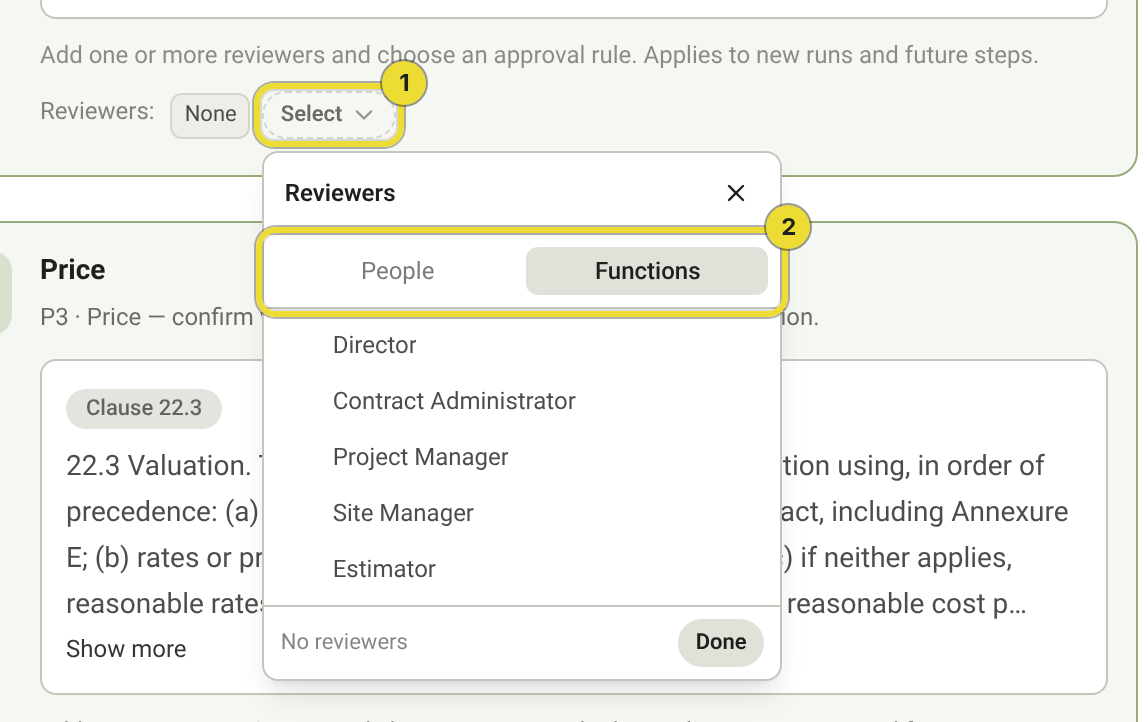
- Under the step, select Select next to Reviewers (1).
- Choose named people on People, or a role on Functions (2). A function goes to whoever holds that role on the project. If your organisation uses limits of authority, LoA routes by amount.
- Select Done.
Use Functions so you don't have to update every agent when someone changes role.
When several people must review a step
With two or more reviewers, choose All required for everyone to approve, or One approval required for the first approval to move the run on. A rejection or request for changes applies straight away.
Updating runs already in progress
Changes apply to new runs and future steps. After you save, DAIV asks whether to update active runs too. Select Update in flight agent approvers to move waiting steps to the new reviewers, and let the previous reviewers know.
Start an agent run
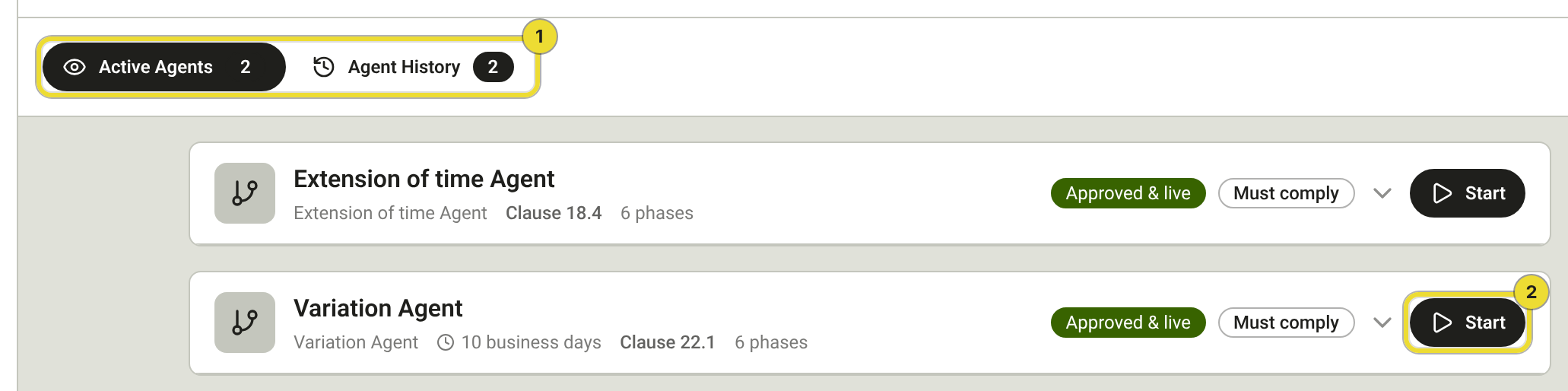
- On Active Agents (1), select Start (2) on the agent.
- Fill in the details for the first step.
DAIV can also suggest a run when a diary entry or a direction looks like a variation or delay. Select Start agent on the diary entry, or open the suggestion from My Work on your dashboard.
Start a run from chat
- Select the chat button at the bottom of the screen.
- Choose the project at the top of the chat, or let DAIV ask which project you mean.
- Describe what happened, such as extra works or a rain delay, and ask DAIV to start a variation or an extension of time.
DAIV fills in the first step and confirms the run has started. Open it from Active Agents or My Work to carry on. This works on active projects you can edit. See Ask the DAIV assistant.
Monitor a run
Open a run from Active Agents, Agent History, or My Work on your dashboard. Each step shows who it's waiting on and what DAIV has produced. Select a completed step to see what was submitted and who approved it.
If a run fails, select Retry.
When a step emails a notice or quote request, it goes out under your organisation's name. Open the step to see its Email history.
Completing a step
- Open the run when a step is waiting on you.
- Check the details and documents DAIV prepared, and change anything that's wrong.
- Choose an action, such as Approve or Request changes.
Organisation admin override
Owners and Admins who aren't reviewers on a step can still act on it. Approving closes the other reviews, and those reviewers are told why. Enter a reason, then select Approve & override.
Agent history
Select Agent History to see every run on the project, with its status and progress.
For totals across runs, use the registers described in the Variation Agent and Extension of time Agent articles.